Our FAQs
Please select a category below to find related FAQs
Most recent Apple, Samsung, and Google devices are compatible with eSIM.
To check if your device is eSIm compatible dial *#06# on your handset. If an EID value appears, your handset supports eSIM.
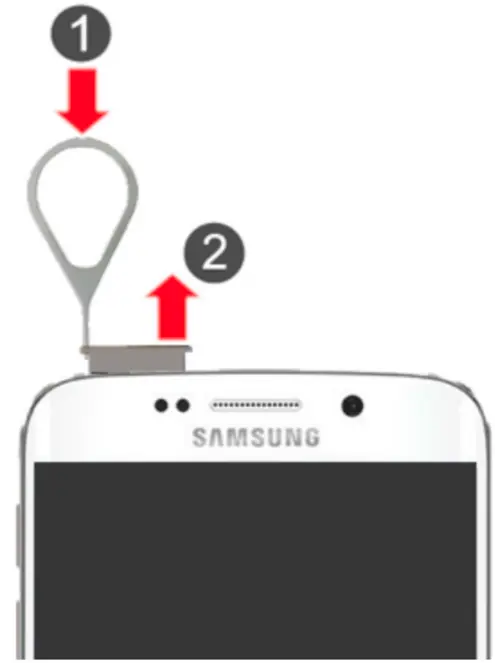
How to remove and insert a SIM card on Android phones
The Android OS gets used in numerous manufacturers’ devices, so it’s a little more challenging to provide instructions for each model. If your phone has a removable back, you’ll find the SIM Card inside or under the battery. It may also exist in the external frame. Look for a pinhole encased in the outline of the tray. Open the tray and insert another carrier’s SIM card using a SIM popper that was provided with the device. If you do use an earring or paperclip etc to open the SIM card tray, we accept no responsibility for any damage resulting from use of an alternative implement.
An eSIM is a virtual Sim card that's built into the phone software and is used instead of the physical sims we have all been used to. It allows you to activate a cellular service without a physical SIM card.
A physical SIM (pSIM) is a removable chip, while an eSIM is embedded in your device and can be reprogrammed to switch carriers.
eSIM is supported in many countries, but availability depends on the region and mobile carriers.
Yes, you can switch carriers by deleting the old eSIM profile and activating a new one from your new carrier.
Yes, many travellers use eSIM for short-term or regional data plans.
Biker Mobile plans currently do not offer international roaming and calling, but this will be available in the next few months.
Yes, eSIMs use encrypted technology and are as secure as physical SIMs. They can be deactivated remotely if your phone is lost or stolen.
If your phone supports eSIM, it likely also supports a physical SIM, allowing you to use services from more than one provider.
Yes, an eSIM should have the same network performance and signal strength as a physical SIM. Use the coverage checker to view coverage in your area.
You can have as many Biker Mobile SIMs as you wish but there are some limitations on Devices and the Biker Mobile Account. Please see below.
If you want multiple eSIMs on more than one device, that’s fine, just check each device supports eSIM.
The number of eSIMs which can be installed on a single device is dependent on your phone make and model.
Many devices can support multiple eSIMs being installed, but only one eSIM can be active at a time.
Having a physical SIM and eSIM active at the same time is not a problem.
At the moment, each Biker Mobile account only supports 1 eSIM or 1 physical SIM, so you will need to purchase each SIM separately and have a Biker Mobile account for each.
In future, we will be looking to support multiple sims on an account and seek to support customers who want to merge accounts so that all their mobile subscriptions are under 1 account.
Yes, Biker Mobile support both eSIM and traditional physical SIM (pSIM).
- As you complete the few steps to purchase the Biker Mobile service, you will be able to select whether you want a traditional physical SIM or eSIM.
- If you choose physical SIM you will be required to complete your delivery address.
- physical SIMs are dispatched on working days and should be with you within 5 working days. We send via Royal Mail.
Is my iPhone Unlocked?
If you're an Apple (iOS) user, you can easily unlock your iPhone. This feature only applies if you bought your device straight from Apple (either at full retail or through their iPhone upgrade program), through a third party (assuming the seller did not have a carrier agreement before purchasing), or through your carrier.
If you got your device from Apple directly, you had the choice to buy a model from a pre-selected carrier or purchase the phone outright with no carrier affiliation. If you chose the second option, your device is already unlocked, and you can use any SIM card and pick up a full signal on any carrier.
How to check Locked/Unlocked status on iPhone
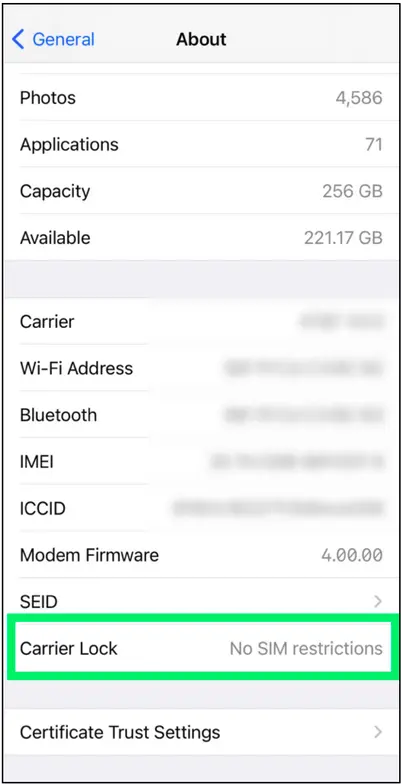
1. On iOS 14 and above, open Settings,
2. Scroll down and tap on General, then select About.
3. If you see the No SIM Restrictions message next to Carrier Lock, then your iPhone is unlocked.
Alternatively, you can power down your phone, place a new SIM card (for your new carrier) into the SIM tray on the side of the iPhone, then power the device back on.
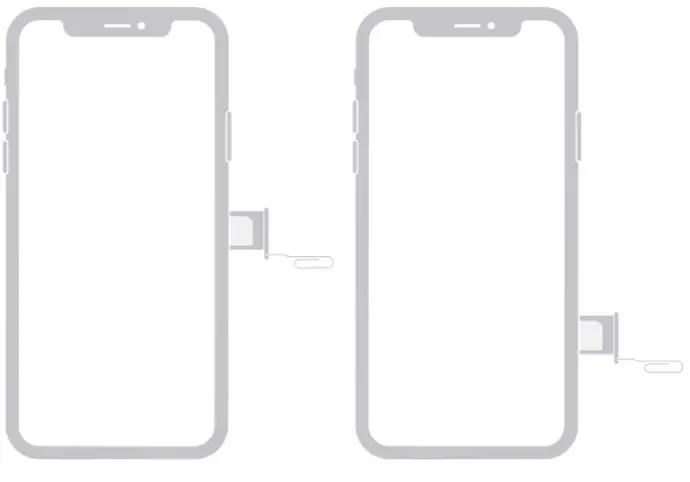
Apple Support Website For SIM Removal
Try to place a phone call or use mobile data to see if your device supports your carrier, but be sure you have active service first. If you don't want to activate your new SIM just yet, check the signal icon at the top and see if it has an “x” over or next to it or check if “No service” appears on the screen. If the phone does make calls, browses the web with Wi-Fi off, or shows a signal with no marks, you're all set to use it on another network.
Is my Android Phone Locked?
Unfortunately, Android doesn't have an option to check SIM restrictions in the settings as newer iPhones do, but that doesn't mean you're entirely out of luck.
How to check Locked/Unlocked status on Android
1. Access Settings from the drop-down menu or through your App Drawer.
2. Tap on Connections, Network & Internet, or other variations depending on brand and model.
3. Select Mobile network, Cellular network, or other variation depending on brand and model.
4. Tap on Advanced (if needed) and select Choose Network, Automatically Select Network, or another variant to open the list of carriers.
5. If several carriers appear, the chances are that your phone is unlocked and just needs the appropriate SIM card. For further confirmation, continue to Step 6.
6. Remove the old SIM card from your phone and insert the newly activated one from the other carrier. Try using mobile data to browse the internet but ensure that Wi-Fi is disabled.
7. If you successfully browsed the internet, your phone is definitely unlocked.
If you want to know if your phone is unlocked without having an activated SIM card for the new carrier, try borrowing someone else’s SIM card and see if you can make a call or browse the web.
Aside from inserting a valid SIM card, if you purchased the device from your current mobile service provider, you can try calling them to confirm the locked/unlocked status of the device.
No, there is no credit check carried out as part of the Biker Mobile sales journey nor during your subscription.
All your Biker Mobile Account management is done through the Biker Mobile self-care App
You can download the Biker Mobile App from
Or use the On Line Biker Mobile self-care
The Biker Mobile self-care App will allow you to view your Subscription, its remaining allowances, the Plan and the Plan price.
It will also let you do the following (amongst other features)
- Activate SIM
- View current plan and remaining allowances -including Add-ons.
- Purchase Add-Ons
- View Personal details and update Marketing Preferences
- View Payment History
- Update your payment method
- Manage Subscription
- Change Plan
- Purchase Plan
- Enable /Disable Plan Auto-renew
- Port In
- Port Out
- Cancel Service
- Link to FAQs
- Chat with us using Webchat
- From Menu select Legal and see links to Biker Mobile Website, Privacy policy and Terms of Service
- Change Password (from Login Page)
We do not store your card details, this is all held by our payment provider and a payment request -for example for renewal of your monthly plan - is transacted through an anonymised token. We take PCI compliance seriously.
See What does the Biker Mobile self-care App let me do
- Personal Details cannot be updated as these record the person the Biker Mobile service was purchased by, and with whom the Biker Mobile Service Agreement is with. If you need to change some details, for example due to marriage, please Contact us | Biker Mobile for assistance.
- You are not able to update your e-mail address as this is your unique identifier and log-in to the Biker Mobile self-care App. If you need to do this please Contact us | Biker Mobile
To close your account, you will need to have ceased all your Mobile Services on the Account first -either by Porting out, STAC or Cancelling the service via Biker Mobile self-care App
See How do I cancel my Mobile Service and what happens when I cancel?
When all your Services have ceased and you wish to close your account Contact us | Biker Mobile and we will close your account. See I’d like my account to be deleted
Please refer to our Privacy policy regarding Right to be Forgotten and our Data retention policy
Open the Biker Mobile self-care App dashboard to see your Remaining allowances
After purchasing, you will receive your Welcome email with your eSIM QR code.
You will need a data connection to download the Apps or access on-line self-care and install the eSIM.
- Install the Biker Mobile App (Apple (iOS) and Android links to download the Biker Mobile app will be in the email)
or
- Set up your self care account (register your account) via Biker Mobile self-care
- Set up your self care account (register your account) on Mobile App before installing your eSIM.
- Scan the eSIM QR code and follow the on-screen instructions to install it on your device or if you have an Apple Device you can use the OneClick install feature in the Biker Mobile App (this will be available soon on Android).
For more detailed instructions and other methods of eSIM installation, see the eSIM Install section of our FAQs.
To move your eSIM between handsets, look in your emails for your 'Welcome to Biker Mobile' mail, this will have your eSIM QR code.
If you can't find this, no problem, Contact us | Biker Mobile or use webchat from your Mobile self-care App (Menu>Chat with us) and we can send you the QR code for Mobile Service’
Once you have your QR code, then you MUST uninstall the eSIM from the old device before trying to install on new device.
- For Android, go to Settings and search for SIM to find your SIM Manager and select your Biker Mobile SIM. Scroll down and there will be an option to Erase/Remove SIM.
- For iOS: Go to Settings > Mobile Data (or Mobile Service or Cellular), select the eSIM plan to remove, and tap "Remove Cellular Plan."
- It's crucial to uninstall the eSIM from the old device while you still have access to it.
Remember, this does not stop your subscription, and payments will still be taken. To prevent this disable Auto-Renew (in Manage Subscriptions). This will stop the Plan and your allowances renewing and the next month’s payment from being taken.
You will then be able to install the eSIM on your new device using the QR code and following the eSIM install instructions in FAQs
Don’t forget to re-enable ‘Auto-Renew’ once you have re-installed your eSIM to enable your plan to automatically renew at the end of the period. If it has already expired- no problem- you can purchase a new plan via Manage Subscription. This will automatically be set to Auto-renew.
If you no longer have access to the old device…
If you have already migrated to a new device and did not uninstall the eSIM from your old device before getting rid of it, the old eSIM profile will remain locked to the now-inaccessible device.
Unfortunately, this means you will not be able to reuse that specific eSIM. In this case, you will need to Contact us | Biker Mobile to request a replacement or purchase a new eSIM.
If you wish to recover the mobile number from the old eSIM, you will need to Contact us | Biker Mobile for support (to help generate and provide a PAC code).
Install the eSIM
For iPhone (iOS 15.4 or later)
1. Ensure Wi-Fi or mobile data is enabled during setup
2. Go to Settings > Mobile Data (or Mobile Service) > Add eSIM
3. Choose Use QR Code or Transfer from Nearby iPhone
4. Scan the QR code (recommended) or follow on-screen instructions
5. Tap Add Mobile Plan when prompted
6. Remember, if you have more than 1 SIM, you have the facility in your Settings (see 7), or when making calls or texts to choose which SIM is used
7. Your Settings: Once installed, go to Mobile Data Settings:
a) Set the eSIM as your primary line (if multiple SIM)
b) Assign labels like “Work” or “Personal” for clarity and feature available
Before starting the install, it is important you have the following three components:
- A strong internet connection - ideally using a Wi-Fi network or a good 4G connection.
- An eSIM compatible device - If unsure, check our FAQ to learn how to identify your device is compatible.
- A device which is not locked to one particular network - If unsure, check our FAQ to learn how to identify if your device is "locked / unlocked"
Do not forget to turn on "Data Roaming" after install!
This is not currently available for Android but it’s coming soon. However, there are two other simple ways to install an eSIM on an Android device detailed in these FAQs.
Before starting the install, it is important you have the following three components:
- A strong internet connection - Ideally using a Wi-Fi network or a good 4G connection.
- An eSIM compatible device - If unsure, check our FAQ to learn how to identify your device is compatible.
- A device which is not locked to one particular network - If unsure, check our FAQ to learn how to identify if your device is "locked / unlocked"
Do not forget to turn on "Data Roaming" after install!
eSIM installation methods on Apple devices:
Installing eSIM(s) On Android Devices
Before starting the install, it is important you have the following three components:
- A strong internet connection - Ideally using a Wi-Fi network or a good 4G connection.
- An eSIM compatible device - If unsure, check our FAQ to learn how to identify your device is compatible.
- A device which is not locked to one particular network - If unsure, check our FAQ to learn how to identify if your device is "locked / unlocked"
Don't forget to turn on "Data Roaming" after install!
On Android there are 2 easy ways to install your eSIM.
Basic Quick Fixes
1. Your device must not be locked to a network -make sure your device is unlocked if switching networks
2. Restart your phone – it’s quick and often resolves activation issues or issues obtaining a mobile signal.
3. Airplane mode – Toggle it on for 10 seconds, then off again, this will trigger network registration and re-establish signal
4. Check mobile data is enabled – Go to Device Settings and mobile settings to check that your new eSIM line is selected for data usage.
5. Data roaming – Biker Mobile Domestic SIMs are not enabled for Roaming -yet. This will be available soon. We will also be launching Travel eSIMs, which will have better pricing with rates negotiated with local carriers
If you're having issues with your internet connection, check if all your settings are set up correctly.
Make sure that Data Roaming is turned on under settings.
To update the Access Point Name (APN):
Go to Settings and search for Access Point Names.
(may also be found under > Network & Internet section > Mobile Networks > Access Point Names)
When you reach Access point names Click “+” or “ADD” > Enter the new APN settings (data.esim) > Hit “Save”
APN Settings can be found in FAQ under: Settings when manually installing eSIM and enabling Biker Mobile Data
If you're having issues with connectivity issues with your eSIM on Apple, make sure you have completed all the steps to access data as per the instructions given in your eSIM installation instructions in FAQ and those on the device screen.
Check the supported network on your Device Settings for the eSIM:
Go to Settings > Cellular/Mobile > click on your eSIM under Cellular Plans > Network Selection > Disable Automatic > Select the correct network (data.esim)
Alternatively, you can try updating your APN settings and check if your data roaming is turned on.
APN Settings can be found in FAQ under: ‘Settings when manually installing eSIM and enabling Biker Mobile Data’
This error message is an installation error message which indicates that the installation of your eSIM hasn’t progressed correctly.
This could be due to:
- Having more eSIMs than your device can support, you may need to disable or uninstall an eSIM.
- Trying to reinstall an eSIM that has already been installed once.
- Poor internet connection during the installation
- Mobile data is turned off under settings.
This error usually shows up if you have a network-locked device. You need a network-unlocked device to download and support eSIMs.
To check this:
Go to Settings > General > About > Carrier Lock
If you see ‘No SIM restrictions’, then your phone is network unlocked.
Reach out to your carrier to get your device network unlocked if you don’t see this message.
If you're trying to install an eSIM in the UK and your eSIM’s ICCID starts with 89444, you may see the error message: “Unable to Activate eSIM”. This impacts a small set of travel SIMs and as a Biker Mobile customer you are unlikely to be affected.
Please note that issue only affects:
- eSIMs with ICCIDs starting 89444
- Apple devices
- For the installations done within the UK (or any country not in the network coverage list for profile in your rate sheet)
This is a known issue, and we’re actively working with Apple to resolve it.
Good news – your eSIM is likely installed!
Despite the error, the eSIM is most likely installed successfully on your device.
To check:
- Go to Settings
- Tap Mobile Service (or Mobile Data > SIMs)
- See if the eSIM appears in the list.
If the eSIM is listed, you're good to go! You can continue using it as planned.
How to avoid this error
To prevent seeing this error message, we recommend:
- Installing your eSIM once you arrive at your destination.
- First check if the number you are calling is supported via the following FAQs:
- Which UK numbers can I call from my Biker Mobile plan?
- Which UK numbers can't I call from my Biker Mobile plan?
- Make sure the number called or being text is valid and active.
- Double-check for typos or missing digits.
- If calling from an eSIM and the eSIM isn’t set up correctly, calls and texts might not work. Please check you followed the activation steps and set the Biker Mobile eSIM -or physical SIM - as your primary line for calls and SMS.
- Check your plan includes calls or texts, or you may have reached their plan's limit -Currently all our plans include unlimited UK calls and texts so this should not be an issue.
- Sometimes a network issue can cause disruption and may be resolved through a device restart / toggling Airplane mode on & off.
- Check you have a Mobile signal.
All of our eSIMs have an automatic Access Point Name (APN) and so manual programming is not necessary.
However, if you do want to check or manually configure the APN, follow the steps below:
Apple:
Go to Settings
Mobile/Cellular Data
Under Mobile/Cellular Data plans select your eSIM
Mobile/Cellular Data Network
In the Mobile/Cellular Data APN field, type data.esim.
Android:
Go to Settings
Network & Internet section
Mobile Networks
Access Point Names
Type the new APN settings, data.esim.
Leave other settings (e.g. Proxy, port, MMS) unchanged
Your password needs to be at least 12 characters but longer is even better. Easy for you to remember but difficult for others to guess.
Consider combining 3 random words to create a password.
You will need include a combination of:
- Uppercase letters (A-Z)
- Lowercase letters (a-z)
- Numbers (0-9)
- Special symbols (!, @, #, $, %, etc.)
Personal Information: Do not use your name, birthday, pet's name, or any other easily guessed personal details.
Common words: Avoid dictionary words and common sequences like "abcdef" or "123456".
Password re-use: Never use the same password for multiple accounts
For more information on strong passwords see: top tips for staying secure online
On the log-in screen there is a Forgot password? link, use this and follow the instructions. You will need access to your e-mail account in order for the required account verification steps to be completed and complete resetting password and accessing your account.
Your user name is the e-mail address you used when signing up to our Mobile Service.
If you search in your emails, you will find notifications from us. We will be using the same e-mail address to communicate with you for Welcome, Verification, Monthly Plan renewal etc. If you cannot find any e-mails, then please Contact us | Biker Mobile.
You can activate your SIM from the dashboard of your Biker Mobile self-care App.
- Download and install the Biker Mobile App, enter your email and complete the few registration fields or
- Access our on-line Self-Care (Biker Mobile self-care), enter your email and complete the few registration fields or
You will be presented with your dashboard with a prominent ‘Activate' button.
SIMs needs to be activated within 6 months from the date of order, after this date the account will be closed and the SIM numbers (eSIM or physical SIM) recycled.
MMS messages are not supported by Biker Mobile. We recommend using applications like WhatsApp for such messaging purposes, which are more cost effective
If you're unable to use hotspot you may need to update your APN settings to include data.esim, specifically in the Personal Hotspot section of the APN settings (if using an Apple iOS device with an older version of iOS).
At the moment we are unable to offer International Roaming and Calling, but this is temporary and we plan to have this available in the next few months.
Currently, we do not offer calls to non-geographic numbers or shortcodes within the UK, but this will be available soon.
This will be available in the coming months.
Currently, we do not offer international calling and texting, but this will be available soon. You can use apps like WhatsApp for international communication until we add this service in the coming months.
If your data seems to have been used too quickly this will be a result of the device usage and can be mitigated by adjusting device settings.
Here are some ways to optimise your data usage:
- Monitor your data usage - Check your phone settings to see how much data you are using, and which apps are consuming the most data. You can also set data usage alerts or limits to help you stay within your data plan.
- Connect to Wi-Fi - Where possible connect your phone to a Wi-Fi network to avoid using your mobile data. This can be particularly useful when streaming video, downloading large files and making video calls.
- Limit background data usage - Some apps use data in the background even when you are not actively using them. To limit this usage, you can disable background data for specific apps or set your phone to limit background data usage in general.
- Use low data mode - Both Apple and Android devices have built-in functionality to help in making data last longer. When travelling you do not want your data being used up for iOS or App updates, so each device type provides a feature to prevent these occurring.
- Apple - Low Data Mode
- Android - Data Saver Mode
- Disable auto-play videos - Videos that autoplay when you scroll through social media apps like Facebook and Instagram can consume a significant amount of data. You can disable auto-play videos in these apps to save data.
- Compress data - Some apps and browsers offer data compression features that can reduce the amount of data used. For example, Google Chrome has a data saver feature that can reduce data usage by up to 50%.
- Download content for offline use using WiFi - Some apps, such as Netflix and Spotify, allow you to download content for offline use. This can be a useful way to save data when you are traveling or in areas with limited internet connectivity.
Please visit the coverage checker and put in the postcodes you want to check, you can find the quality of 2G, 4G and 5G both indoors and outdoors.
3G has been repurposed to enable more 4G availability and so is no longer available.
Yes. Biker Mobile supports 5G in areas where available. Check our coverage map.
See How do I identify I have mobile service in areas I live, frequently visit or wish to visit?
Yes, you can use an eSIM and a physical SIM together on most modern devices.
Both of these can be Biker Mobile SIMs, at present there is only support for one SIM per account.
You must be over 18 to access adult content. If you would like to have adult content available, please contact us through webchat. We will need to receive a scan of an official photo ID (e.g. Driving Licence / passport) where the details match those you provided when you signed up. Once these are checked we will enable the access.
We will shortly provide an Age Verification feature in the Biker Mobile self-care App -this will be found under ‘Manage Subscription’
Wi-Fi Calling
Wi-Fi calling uses a Wi-Fi connection letting you make and receive calls when your mobile signal is low.
The calls will automatically move between Wi-Fi and mobile networks, so there should be no interruption.
Please note that Wi-Fi calling, if connected, is always reliant on the speed of the Wi-Fi.
Wi-Fi Calling is already enabled for all Biker Mobile customers.
To use it you will need:
- A compatible phone
- The right software: Android 12 or higher, or iOS 15.4.1 or higher
- Wi-Fi Calling turned on in your phone settings
- Access to a Wi-Fi network.
How much do Wi-Fi calls cost?
You will pay the same rate for Wi-Fi calls as you do for regular network calls and if the mobile call is included in your allowance, the same call will be included in your allowance over WiFi.
Voicemail is ready to use with your Biker Mobile UK SIMs.
To make any changes to voicemail please refer to following instructions:
1. Check your voicemail: Dial `121` from your phone.
2. Turn off voicemail: Dial `1210`. Please note, this will delete any saved messages.
3. Turn on voicemail: Dial `1211` to activate it again.
4. Divert all calls to voicemail: Dial `1212` to send all calls straight to your voicemail.
5. Cancel call divert to voicemail: Dial `1213` to stop all calls from going directly to voicemail.
Visual Voicemail
Visual Voicemail is only available on iPhone 5s and higher with iOS 12 or higher.
If you subscribed to our eSIM 'Try before you buy' promotion, then your first payment will be taken after your 'Try before you buy' eSIM Promotion has been completed. This will occur 7 days after the eSIM was activated.
Otherwise, your first payment will be taken at the time you Activate your SIM -whether physical SIM or eSIM.
- You pay upfront for your plan each month following activation. The Month will run from date and time purchased for 1 calendar month. For example, if purchased on 8th April at 15:20, then the next renewal will be 8th May at 15:20.
- Payment will be taken from the Payment Method entered when you signed up to Biker Mobile, or subsequently updated through the Biker Mobile App [Menu>Account Details>Change Payment Method]
- If your plan has expired and auto renew was disabled, you will need to purchase a new plan to re-enable service. The new plan purchase date will become your plan renewal anniversary.
- To have your payment collected on a specific day then you'll need to activate/purchase the plan on that date.
Typically with Post Pay you are charged a monthly advance fee for your plan, payable at purchase or activation and at the end of the billing period- usually monthly, you have a bill for next months plan plus any extra fees resulting from additional usage outside any allowances -such as usage exceeding allowances, International calls and texts, Non Geographic UK calls and Roaming charges. Typically Post-pay of this type is associated with a Credit Check and a contract period of a number of months.
With Biker Mobile Pre-Pay, you pay for your monthly plan, typically at Activation and prior to each monthly renewal and this provides your allowances; Unlimited UK calls and texts and defined data volume, or unlimited UK data depending on your choice of plan.
For additional info, please see:
- When do I get billed for my monthly plan and when do I pay
- Which UK numbers can I call from my Biker Mobile plan?
There are no surprises at the end of the month for additional usage charges.
To gain access to additional services such as Roaming, International Calling, Non Geographic services see the following FAQs:
Changing your payment method is managed from the Biker Mobile self-care App Menu option (3 horizontal bar icon on bottom right of App).
From the Menu select Account Details and Change Payment Method. This will open a web browser to the payment provider page where you can manage your Payment Method(s)
You will need to keep an active valid payment method as default in order to keep your Biker Mobile Service active when it comes to renewal.
We do not store your card details, this is all held by our payment provider.
We support the following payment options e.g. Credit card, Debit card, Google Pay, Apple Pay, Stripe Pay
All plans are paid for in advance, and we will process a payment at the time your plan is due for renewal, using the payment method you have saved -provided you have Auto-Renew enabled.
Payment can be taken via Credit card, Debit Card, Apple Pay, Google Pay and Stripe Pay.
If your plan payment fails, we will send you a notification and retry to take the payment.
If we cannot successfully take a payment, then we will suspend your Biker Mobile Service -you will be unable to access Biker Mobile data or make calls or send texts.
Incoming calls and texts will remain available.
If this happens, all you need to do is log into your Biker Mobile self-care App and purchase a new Plan. You may want to update your payment method to prevent payment failure happening again
Following Activation or new plan purchase, plans automatically re-new each month while Auto-renew is enabled (see When do I get billed for my monthly plan and when do I pay)
Using your Biker Mobile self-care app, you can toggle Auto-Renew on and off anytime up to 3 hours before your plan is due for renewal. Within 3 hours of your plan renewal, processes are underway to process your new plan payment and renew your allowances, so changing the setting is disabled.
If Auto-renewal is off, we will not renew your plan, and your Biker Mobile service will stop at the end of your current plan period, and you will lose access to Biker Mobile data, calls and texts including those within Add-ons.
Auto-Renew can be re-enabled while you have an active plan.
If you have no active plan, then you will need to select a new plan from Manage Subscription and process a payment. Once the payment has gone through your Biker Mobile service will resume.
You need to have an active Plan in order to purchase an Add-on.
If your Subscription remains without an Active plan, after 135 days we will send you a notification that your Auto-Renew is disabled and include a PAC enabling you to take your mobile number to another provider within the next 30 days. Once your PAC has expired, we will terminate your subscription, and you will not be able to recover your mobile number.
Using the Biker Mobile self-care App, from the Menu option (bottom right in Mobile App screen) select Manage Subscription. Select Change Subscription to display the screen that displays your current plan and the Auto-Renew toggle. The toggle allows you to Disable and re-enable Auto-renew. We will send you a notification when you change this setting.
If you do not have a current plan, then Auto-renew is not displayed.
There can be a number of reasons why your plan has not renewed.
- Auto-Renew has been Disabled
- Your Payment card is no longer valid e.g. has expired. To resolve this log onto the Biker Mobile App and purchase a new plan to re-enable Biker Mobile Services. When purchasing you will need to enter Payment details and these will be saved for future renewal payments. The new plan will have Auto-Renew enabled by default.
- Your renewal payment has failed, we will retry payment collection and send you a notification that payment has failed. However, you can log onto the Biker Mobile self-care App and purchase a new plan to re-enable Biker Mobile Services
Note: If payment collection for your next month’s plan has been unsuccessful, we will suspend your access to Biker Mobile services.
Biker Mobile Plans provide a defined allowance of UK data (unless on ‘No Limits’ unlimited data plan) and unlimited UK Voice and SMS - refer to Which UK numbers can I call from my Biker Mobile plan
Each Biker Mobile Plan will last for one Calendar Month from the date and time purchased
With the UK Biker Mobile Plan, you can call:
- Standard UK landlines (starting 01, 02, and 03; excluding Isle of Man and Channel Islands).
- Freephone numbers (080 prefix).
- Standard UK mobiles (excluding Isle of Man and Channel Islands and certain other non-standard operators too).
- Emergency services e.g. 999, 112 others
- Non-Emergency numbers (101, 105, 111, 119)
- Social Value numbers (116 prefix)
With the UK Biker Mobile plan, you cannot currently call Non-Standard Rate numbers and services, including:
- Numbers starting with 08 (that are not freephone 080) such as 084 and 087 numbers.
- 070 and 076 numbers (don’t worry, these are not actually mobile numbers!)
- UK corporate and location-independent services (the 055, 056 prefixes)
- Premium rate, short codes, directory, or subscription services; including 118 numbers and those starting 09
International calls or texts from the UK are not supported currently.
We will be looking to make ‘Cash Add-ons’ available in coming months that will enable you to access these numbers.
An Add-on is a facility to purchase additional service(s) to your Monthly Plan -for example if you are about to or have run out of UK data you can buy a Data Add-on, provided you currently have an active plan. (i.e. a plan purchased within the last month of your renewal date)
- Most Biker Mobile Add-ons last 30 days, although there are some Add-ons available for a different number of specified days.
- Any Add-on unused allowance expires when the Add-on expires.
- Currently all Biker Mobile Add-ons are for UK data only.
- Add-ons do not auto-renew and will run from the date and time purchased/payment processed for the defined number of days in the Add-on.
- Roaming and Cash Add-ons will be available in early 2026.
- Cash Add-ons will enable access to international calling as well as access to usage excluded from your UK Unlimited calls and texts Plan such as UK Non-Geographic, Shortcodes etc.
- Roaming Add-ons will be available enabling usage abroad.
Add-ons can be purchased via Biker Mobile self-care App using the Shopping Menu in bottom tool menu
Plans are changed from your Biker Mobile self-care App
-From the Menu option navigate to Manage Subscription and Change Subscription
- From a list of Available Plans, you will be able select the plan you wish to move to when your current plan period comes to an end.
- Changing your plan must be done 3 hours before your current Plan period ends to enable system updates to take place. Although we will endeavour to process requests after this time we can’t guarantee they will take effect in time.
- If you have changed your plan multiple times during your current plan period, then the last Plan change will be effective, and other requests will be ignored.
- If you are on a 'Try before you buy' promotion, the Plan Change is effective at the end of the Plan period, not the 'Try before you buy' Trial period.
Try Before you Buy is an eSIM only promotion.
- This works as follows; Where your Plan payment for the month is usually taken at activation (and subsequently each time your plan renews on the expiry of the Plan’s period) the ‘Try Before you Buy’ first payment is taken 7 days after Activation and the cost of the plan is reduced by 25%.
- If you choose to cancel in the 7 day Trial period, then no payment will be taken, and we hope you will have enjoyed 7 days Free Biker Mobile service.
- After the 7 day Trial period you will remain on the plan you selected when you ordered your Biker Mobile eSIM.
- If you choose to change plan -whether in Trial period or after, the Plan change will become effective at the end of the Plan period (not the Trial period).
- This does not affect any statutory rights, and you are of course still entitled to the statutory 14 day money back guarantee from the date of your order.
- After the first plan period, the plan will renew at the current advertised price and payment will be taken as part of plan renewal.
As most Mobile Devices can support more than one SIM at a time (and many 1 or more eSIMs) then you can try Biker Mobile for free while keeping your existing SIM and mobile provider.
You will need to update your device settings to set which SIM to use for calls, texts and data -or to ask each time.
Yes, if you don’t, you’ll roll into the full month and the discounted first month payment will be collected.
If you don't wish to continue the Biker Mobile Service, you will need to cancel within the 7 days. We'll be sorry to see you go.
To cancel the subscription, using your Biker Mobile self-care App follow the instructions below:
- Disable Auto-Renew - from the Menu option select Manage Subscription then Change Subscription and disable Auto-Renew using the toggle.
- Cancel subscription - from the Menu option, select Manage Subscription then Cancel Subscription. Please review the notes and Confirm Cancellation if you DON’T want to keep the mobile number and to cancel the service
If you don't cancel, then the first discounted plan payment will be collected automatically after 7 days and your service will continue
Please note.
If you want to keep the Mobile Number, then you will need to request a PAC and port out.
You will need to complete the port out BEFORE the 7 day trial elapses or you will be charged for the first month. Porting is supported during working days only and takes 1 working day. The earliest you can request to port out is the next working day from the current date.
For additional info, please see the following FAQs:
There are a number of ways you can cancel your Biker Mobile Service, how you do this depends whether you wish to keep your Mobile Number.
If you don’t wish to keep your mobile Number, you have two options:
- Cancel Subscription using your Biker Mobile self-care App
To cancel the subscription, follow the instructions below.
- Disable Auto-Renew - from the Menu option select Manage Subscription then Change Subscription and disable Auto-Renew using the toggle.
- Cancel subscription - from the Menu option, select Manage Subscription then Cancel Subscription. Please review the notes and Confirm Cancellation if you DON’T want to keep the mobile number and to cancel the service
- Request a STAC
See PAC Code or STAC Code: what’s the difference and how do I get one?
Note Once you have cancelled or your STAC has completed, we will not be able to transfer your mobile number if you change your mind.
If you do wish to keep your mobile phone number, then you will need to port out.
Refer to How do I port my mobile number from Biker Mobile out to a new provider
We are obligated to refund your money if you cancel within 14 days from date of order.
See How do I cancel my Mobile Service and what happens when I cancel?
Where cancellations are within 14 days of your date of order, please note that this is the date of order not when the SIM was activated, we will refund your payment back to the card from which the payment was taken.
The use of PAC or STAC relate to keeping or changing your Mobile Phone Number when switching providers.
If you're switching mobile providers in the UK, you have two options when it comes to your mobile phone number:
1. Keep your current number
2. Start with a new number
This process is part of Mobile Number Portability (MNP) — a system that allows subscribers to move their mobile number from one provider to another.
To complete the switch, you will need one of two codes: a PAC or a STAC.
What is a PAC Code?
PAC stands for Porting Authorisation Code. You will need this code if you wish to keep your current mobile number when moving to a new provider.
Once you give your PAC code to your new provider, they’ll transfer your number and automatically cancel the previous mobile service.
Obtaining a PAC
You can request a PAC from your current provider using their SIM in your handset, by texting ‘PAC’ to 65075. Some providers may require additional information -such as your date of birth.
They should also provide you with a PAC via their self care and/or their support team.
There is no charge for a PAC and they will inform you of any Termination charges due
What is a STAC Code?
STAC stands for Service Termination Authorisation Code. You use this if you want to switch providers and get a new Mobile Phone number, without keeping your old one.
Give the STAC code to your new provider who will contact your current provider to inform them to cancel their service without you needing to contact the provider separately.
If you're switching to a new provider and not sure which option is best, you need to consider whether you want to keep your current number or prefer to start with a new one.
Obtaining a STAC
You can request a STAC from your current provider using their SIM in your handset, by texting ‘STAC’ to 75075. Some providers may require additional information -such as your date of birth.
They should also provide you with a STAC via their self care and/or their support team.
There is no charge for a STAC and they will inform you of any Termination charges due.
Note that if you are in contract with your previous provider, either for Airtime or Handset, then you may be subject to Early Termination Fees -check your contract dates and Terms and Conditions.
With Biker Mobile, you will not be subject to any Early Termination Fee when leaving.
Why should you text INFO to 85075?
- You can use this to check contract status: You can quickly find out if you are still tied into a contract.
- Avoid charges: This allows you to see any potential charges you would face for leaving your current provider before you request to switch.
- Get information: You get the key details needed for switching without having to ask your provider for a full PAC or STAC code.
Biker Mobile is a rolling monthly contract -so there are no Early Termination Fees. If you leave before the end of your current period, you will lose any remaining Plan or Add-on Allowances
Texts for PAC, STAC and INFO are free of charge.
To Port out you will need a PAC code to give to your new service provider with your Mobile Number and a desired Port date -this needs to be within 30 days of receiving your PAC
Here are 2 methods of obtaining a PAC code
- Via Text
- Text PAC and your date of birth to 65075 using your current provider’s SIM. Biker Mobile requires your date of birth to validate the request. So, you would send “PAC 170487” if your date of birth is 17 April 1987
- You will receive a reply by SMS with your PAC code (valid for 30 days) and an email with Account details
- This PAC code needs to be shared with your new provider during or after activation (but within 30 days of receipt)
- Requesting PAC or STAC from Biker Mobile self-care App
- You can also request a PAC or STAC via the Biker Mobile self-care App.
- From Menu go to Manage Subscription and select Port Out. From here you can Request PAC (or Request STAC).
- You will receive a reply by SMS with your PAC or STAC code (valid for 30 days) and an email with Account details.
If you are leaving Biker Mobile before your current plan renews you may wish to disable Auto-renew. Although, we will disable Auto-Renew automatically when we are advised by your new provider that the Port or STAC has completed.
The new Service provider will issue you with a new Number. If you give them the STAC we issue you, then they will advise us to cancel your subscription, and your mobile number will NOT be transferred to your new provider.
Here are 2 methods of obtaining a STAC code
- Via Text
- Text STAC and your date of birth to 75075 using your current providers SIM. Biker Mobile requires your date of birth to validate the request. So, you would send “STAC 170487” if your date of birth is 17 April 1987
- You will receive a reply by SMS with your STAC code (valid for 30 days) and an email with Account details
- This STAC code needs to be shared with your new provider during or after activation (but within 30 days of receipt)
- Requesting PAC or STAC from Biker Mobile self-care App.
- You can also request a PAC or STAC via the Biker Mobile App.
- From Menu go to Manage Subscription and select Port Out. From here you can Request STAC (or Request PAC).
- You will receive a reply by SMS with your PAC or STAC code (valid for 30 days) and an email with Account details.
For more information on PAC/STAC and INFO requests please see PAC Code or STAC Code: what’s the difference and how do I get one?
If you are leaving Biker Mobile before your current plan renews you may wish to disable Auto-renew. Although, we will disable Auto-Renew automatically when we are advised by your new provider that the Port or STAC has completed.
You can keep your current mobile number when switching to Biker Mobile by requesting a free PAC code from your existing provider and providing it to Biker Mobile.
The transfer of the Mobile number typically completes within one working day.
You will need to submit your porting request usually before 5pm on the day before the port is required, otherwise the port will be likely to complete on the 2nd working day after the port was requested.
Step 1 — Request a PAC Code
A Porting Authorisation Code (PAC) is a nine-character alphanumeric code that allows your new network to transfer your phone number. In the UK, the easiest method to get a PAC code is:
Text Method: Send PAC to 65075 from the mobile number you wish to port. Some networks might also request your date of birth or other verification details for security, e.g., text PAC 170487 if your date of birth is 17 April 1987.
Online Account: Log into your current provider's online self-care or mobile app and request the PAC from your account settings.
If you can't text/have not got your SIM card of the number you want to keep.
Phone Call or Webchat: You can Webchat or call your current provider; they must provide the PAC immediately or within two hours if the request is made over the phone.
Once issued, the PAC is valid for 30 days, and you should provide it to us within that period to avoid needing a new one
Step 2 — Provide PAC to Biker Mobile
After receiving your PAC, supply it to Biker Mobile via your Biker Mobile self-care App. From the Menu icon (bottom right), select Manage Subscription and select Port In.
Step3 -Enter the Mobile Number you wish to keep, enter the PAC Code and enter your Preferred Switch Date -selecting a working day.
The Switch Date will need to be a working day and not the current date.
If you don’t select a working day, then the request will be processed on the next available working day
Biker Mobile will notify your old provider and arrange the port.
If requested after 5pm on a working day or on weekends / Public holidays, it might take up to two working days. No Ports are progressed on Public holidays or on a Friday preceding Christmas day.
Keep your current SIM active until the transfer is complete, ensuring you can continue to make calls or send messages without interruption.
Step 4 — Check the Transfer
Once Biker Mobile confirms the port (we will send you a notification), insert your new physical SIM/ install your eSIM. Test by making a call or sending a text to ensure your ported number is fully functional on Biker Mobile. If any issues arise, check our FAQs for a solution and if these are not able to resolve the problem please contact Biker Mobile for support through Contact us | Biker Mobile or Webchat .
Additional Notes
- No extra charge: Requesting and using a PAC is free.
- Contract details: Your old network must also provide any early termination charges or other relevant information when issuing the PAC.
- Failure or expiry: If your PAC expires without being used, simply request a new one.
- STAC code: If you prefer to start a new number instead of keeping your old one, see PAC Code or STAC Code: what’s the difference and how do I get one?
- You will need to Request a PAC within a month or so of leaving your old Service Provider (depending on their T&Cs) so that they have not terminated and recycled your number.
Porting Process Timeline
Porting activities are conducted on working days according to the following schedule:
08:00: Standard port-in requests processed.
10:00: Port-out activities commence.
14:00: Porting completion and service reapplication.
During this period, there may be a brief interval of "split service" where the number is active on both the donor and recipient networks.
A successful porting process should be completed by 14:00 on porting day, with any outstanding issues resolved by 16:00. Delays beyond this timeframe may indicate high demand or technical issues requiring manual intervention.
Service issues on porting day
On the day of porting, the customer may experience a temporary service disruption during the porting window. This is expected behaviour and typically resolves automatically.
Porting is usually completed by 16:00 UK time on the scheduled port date.
If the customer still experiences service issues after 16:00, please contact our support team for investigation or Webchat.
Please note that above is applicable only for porting in request – where the customer is porting into Biker Mobile.
If the customer experiences any issues with the service after porting Out from Biker Mobile, they should contact their new service provider.
If you can't find the information or answer you are looking for in our FAQ or site information you can get in touch via Contact us | Biker Mobile or via webchat with one of our advisers via our website, or using your Biker Mobile self-care App -via Menu and Chat with us.
This will open a web page, with a webchat icon in the bottom right corner. Tap on this and it will open our webchat window.
This can open quite a small window, but you can enlarge it by a double tap or using pinch-to-zoom.
We don't have a call centre however our webchat team will be available to help resolve your enquiry.
Webchat teams are available on the following opening days and times. Webchat is not available on public holidays.
Monday–Friday, 9am to 5pm (UK time).
Your Mobile Phone Number will be displayed on the Dashboard of your Biker Mobile App.
When you Port, the number will be updated when the Port completes and you next log back into the Mobile App.
You can find your mobile number, by dialling *#100# and pressing call. Your phone number will appear on your device's screen instantly and this service is free of charge.
If you have a complaint, please refer to our Complaints Policy - using this link: How to register a complaint, which will guide you through different ways you can make a complaint and the information needed so we can act on it.
Contact us | Biker Mobile immediately. We will deactivate it and help provide a replacement SIM for you and get your mobile number back. We will need to take you through some identity validation to do this.
We comply with GDPR. See our Privacy policy for details -you can access this from your Biker Mobile self-care App.
Please contact via Biker Mobile Contact us | Biker Mobile. Deleting your information will include deleting your Biker Mobile account login, you will no longer be able to access your account. Please refer to our Privacy Policy
Please refer to our Privacy policy (this is available from the Mobile App via the Menu, select Legal and Privacy Policy) regarding Right to be Forgotten and our Data retention policy.
Our application integrates with a number of partners including Payment provider and Network. We always endeavour to present the latest information, sometimes a refresh will help.
You can refresh the information in the Biker Mobile self-care App from the Dashboard by simply dragging your finger vertically down the screen
You can purchase your Biker Mobile SIM through our Biker Mobile Shop
You will be able to select the monthly plan and whether you want an eSIM or physical SIM
The eSIM will be sent to you by email on completion of your order.
The physical SIM will be sent in the post -so please allow 3 to 5 working days for delivery
All our plans are one month rolling and will automatically renew unless you turn off auto-renew.
Renewal occurs on the anniversary of your activation (Date and time) or if service has been paused between renewals through disabling Auto-renew, when you re-enable the service by purchasing a new plan.
Your plan allowances reset each time your plan renews. You can't roll any unused data from one month to the next.
If you do run out of data, then we have a range of Data add-ons that can be purchased to tide you over until renewal.
If your plan is often running out of data, you may wish to change plan to one with a greater data allowance.
The plans we offer change, to view the currently available plans visit our Biker Mobile Shop or your Biker Mobile self-care App (Menu -> Manage Subscription -> Change Subscription)
We will stop the service when you reach your allowance, though we will send you notifications when you have consumed 80% and 100% of your allowance.
You will be able to purchase Add-ons via the Biker Mobile self-care App to enable you to continue to use the Data service until your plan renews and allowances have been refreshed. Add-ons become active immediately after a successful purchase and will last between 1 day and 30 days depending on the Add-on you selected.
Biker Mobile will put 10% of SIM sales and renewals revenue excl. VAT into a fund for distribution to nominated organisations that support Bikers.
Our Biker Mobile Community page will provide visibility of the total contributions made by Biker Mobile to the community.
We are very proud that this year we are supporting Air Ambulance UK in appreciation of the support they have provided to many bikers over the years.
Yes, please do. You can do this through Contact us | Biker Mobile. However, we do need to make sure that these are legitimate organisations so will need relevant contact details, Charity Registration number etc.
Check that the email you are using to set up your account after ordering is the one that you entered in the Sales journey.
You can double check this with the emails you will have received from Biker Mobile ‘validating your email address’ and ‘Welcome’ on completion of sale.
The most common reason for this is delay is e-mails or that it has gone into your spam folder. Check your Spam folder, if you have not received your verification code after 3-5 minutes, request another to be sent
Our Getting Started web page will guide you through the steps after successfully completing your eSIM order
Our Getting Started web page will guide you through the steps after successfully completing your physical SIM order
Please select a category below to find related FAQs
Most recent Apple, Samsung, and Google devices are compatible with eSIM.
To check if your device is eSIm compatible dial *#06# on your handset. If an EID value appears, your handset supports eSIM.
How to remove and insert a SIM card on Android phones
The Android OS gets used in numerous manufacturers’ devices, so it’s a little more challenging to provide instructions for each model. If your phone has a removable back, you’ll find the SIM Card inside or under the battery. It may also exist in the external frame. Look for a pinhole encased in the outline of the tray. Open the tray and insert another carrier’s SIM card using a SIM popper that was provided with the device. If you do use an earring or paperclip etc to open the SIM card tray, we accept no responsibility for any damage resulting from use of an alternative implement.
An eSIM is a virtual Sim card that's built into the phone software and is used instead of the physical sims we have all been used to. It allows you to activate a cellular service without a physical SIM card.
A physical SIM (pSIM) is a removable chip, while an eSIM is embedded in your device and can be reprogrammed to switch carriers.
eSIM is supported in many countries, but availability depends on the region and mobile carriers.
Yes, you can switch carriers by deleting the old eSIM profile and activating a new one from your new carrier.
Yes, many travellers use eSIM for short-term or regional data plans.
Biker Mobile plans currently do not offer international roaming and calling, but this will be available in the next few months.
Yes, eSIMs use encrypted technology and are as secure as physical SIMs. They can be deactivated remotely if your phone is lost or stolen.
If your phone supports eSIM, it likely also supports a physical SIM, allowing you to use services from more than one provider.
Yes, an eSIM should have the same network performance and signal strength as a physical SIM. Use the coverage checker to view coverage in your area.
You can have as many Biker Mobile SIMs as you wish but there are some limitations on Devices and the Biker Mobile Account. Please see below.
If you want multiple eSIMs on more than one device, that’s fine, just check each device supports eSIM.
The number of eSIMs which can be installed on a single device is dependent on your phone make and model.
Many devices can support multiple eSIMs being installed, but only one eSIM can be active at a time.
Having a physical SIM and eSIM active at the same time is not a problem.
At the moment, each Biker Mobile account only supports 1 eSIM or 1 physical SIM, so you will need to purchase each SIM separately and have a Biker Mobile account for each.
In future, we will be looking to support multiple sims on an account and seek to support customers who want to merge accounts so that all their mobile subscriptions are under 1 account.
Yes, Biker Mobile support both eSIM and traditional physical SIM (pSIM).
- As you complete the few steps to purchase the Biker Mobile service, you will be able to select whether you want a traditional physical SIM or eSIM.
- If you choose physical SIM you will be required to complete your delivery address.
- physical SIMs are dispatched on working days and should be with you within 5 working days. We send via Royal Mail.
Is my iPhone Unlocked?
If you're an Apple (iOS) user, you can easily unlock your iPhone. This feature only applies if you bought your device straight from Apple (either at full retail or through their iPhone upgrade program), through a third party (assuming the seller did not have a carrier agreement before purchasing), or through your carrier.
If you got your device from Apple directly, you had the choice to buy a model from a pre-selected carrier or purchase the phone outright with no carrier affiliation. If you chose the second option, your device is already unlocked, and you can use any SIM card and pick up a full signal on any carrier.
How to check Locked/Unlocked status on iPhone
1. On iOS 14 and above, open Settings,
2. Scroll down and tap on General, then select About.
3. If you see the No SIM Restrictions message next to Carrier Lock, then your iPhone is unlocked.
Alternatively, you can power down your phone, place a new SIM card (for your new carrier) into the SIM tray on the side of the iPhone, then power the device back on.
Apple Support Website For SIM Removal
Try to place a phone call or use mobile data to see if your device supports your carrier, but be sure you have active service first. If you don't want to activate your new SIM just yet, check the signal icon at the top and see if it has an “x” over or next to it or check if “No service” appears on the screen. If the phone does make calls, browses the web with Wi-Fi off, or shows a signal with no marks, you're all set to use it on another network.
Is my Android Phone Locked?
Unfortunately, Android doesn't have an option to check SIM restrictions in the settings as newer iPhones do, but that doesn't mean you're entirely out of luck.
How to check Locked/Unlocked status on Android
1. Access Settings from the drop-down menu or through your App Drawer.
2. Tap on Connections, Network & Internet, or other variations depending on brand and model.
3. Select Mobile network, Cellular network, or other variation depending on brand and model.
4. Tap on Advanced (if needed) and select Choose Network, Automatically Select Network, or another variant to open the list of carriers.
5. If several carriers appear, the chances are that your phone is unlocked and just needs the appropriate SIM card. For further confirmation, continue to Step 6.
6. Remove the old SIM card from your phone and insert the newly activated one from the other carrier. Try using mobile data to browse the internet but ensure that Wi-Fi is disabled.
7. If you successfully browsed the internet, your phone is definitely unlocked.
If you want to know if your phone is unlocked without having an activated SIM card for the new carrier, try borrowing someone else’s SIM card and see if you can make a call or browse the web.
Aside from inserting a valid SIM card, if you purchased the device from your current mobile service provider, you can try calling them to confirm the locked/unlocked status of the device.
No, there is no credit check carried out as part of the Biker Mobile sales journey nor during your subscription.
All your Biker Mobile Account management is done through the Biker Mobile self-care App
You can download the Biker Mobile App from
Or use the On Line Biker Mobile self-care
The Biker Mobile self-care App will allow you to view your Subscription, its remaining allowances, the Plan and the Plan price.
It will also let you do the following (amongst other features)
- Activate SIM
- View current plan and remaining allowances -including Add-ons.
- Purchase Add-Ons
- View Personal details and update Marketing Preferences
- View Payment History
- Update your payment method
- Manage Subscription
- Change Plan
- Purchase Plan
- Enable /Disable Plan Auto-renew
- Port In
- Port Out
- Cancel Service
- Link to FAQs
- Chat with us using Webchat
- From Menu select Legal and see links to Biker Mobile Website, Privacy policy and Terms of Service
- Change Password (from Login Page)
We do not store your card details, this is all held by our payment provider and a payment request -for example for renewal of your monthly plan - is transacted through an anonymised token. We take PCI compliance seriously.
See What does the Biker Mobile self-care App let me do
- Personal Details cannot be updated as these record the person the Biker Mobile service was purchased by, and with whom the Biker Mobile Service Agreement is with. If you need to change some details, for example due to marriage, please Contact us | Biker Mobile for assistance.
- You are not able to update your e-mail address as this is your unique identifier and log-in to the Biker Mobile self-care App. If you need to do this please Contact us | Biker Mobile
To close your account, you will need to have ceased all your Mobile Services on the Account first -either by Porting out, STAC or Cancelling the service via Biker Mobile self-care App
See How do I cancel my Mobile Service and what happens when I cancel?
When all your Services have ceased and you wish to close your account Contact us | Biker Mobile and we will close your account. See I’d like my account to be deleted
Please refer to our Privacy policy regarding Right to be Forgotten and our Data retention policy
Open the Biker Mobile self-care App dashboard to see your Remaining allowances
After purchasing, you will receive your Welcome email with your eSIM QR code.
You will need a data connection to download the Apps or access on-line self-care and install the eSIM.
- Install the Biker Mobile App (Apple (iOS) and Android links to download the Biker Mobile app will be in the email)
or
- Set up your self care account (register your account) via Biker Mobile self-care
- Set up your self care account (register your account) on Mobile App before installing your eSIM.
- Scan the eSIM QR code and follow the on-screen instructions to install it on your device or if you have an Apple Device you can use the OneClick install feature in the Biker Mobile App (this will be available soon on Android).
For more detailed instructions and other methods of eSIM installation, see the eSIM Install section of our FAQs.
To move your eSIM between handsets, look in your emails for your 'Welcome to Biker Mobile' mail, this will have your eSIM QR code.
If you can't find this, no problem, Contact us | Biker Mobile or use webchat from your Mobile self-care App (Menu>Chat with us) and we can send you the QR code for Mobile Service’
Once you have your QR code, then you MUST uninstall the eSIM from the old device before trying to install on new device.
- For Android, go to Settings and search for SIM to find your SIM Manager and select your Biker Mobile SIM. Scroll down and there will be an option to Erase/Remove SIM.
- For iOS: Go to Settings > Mobile Data (or Mobile Service or Cellular), select the eSIM plan to remove, and tap "Remove Cellular Plan."
- It's crucial to uninstall the eSIM from the old device while you still have access to it.
Remember, this does not stop your subscription, and payments will still be taken. To prevent this disable Auto-Renew (in Manage Subscriptions). This will stop the Plan and your allowances renewing and the next month’s payment from being taken.
You will then be able to install the eSIM on your new device using the QR code and following the eSIM install instructions in FAQs
Don’t forget to re-enable ‘Auto-Renew’ once you have re-installed your eSIM to enable your plan to automatically renew at the end of the period. If it has already expired- no problem- you can purchase a new plan via Manage Subscription. This will automatically be set to Auto-renew.
If you no longer have access to the old device…
If you have already migrated to a new device and did not uninstall the eSIM from your old device before getting rid of it, the old eSIM profile will remain locked to the now-inaccessible device.
Unfortunately, this means you will not be able to reuse that specific eSIM. In this case, you will need to Contact us | Biker Mobile to request a replacement or purchase a new eSIM.
If you wish to recover the mobile number from the old eSIM, you will need to Contact us | Biker Mobile for support (to help generate and provide a PAC code).
Install the eSIM
For iPhone (iOS 15.4 or later)
1. Ensure Wi-Fi or mobile data is enabled during setup
2. Go to Settings > Mobile Data (or Mobile Service) > Add eSIM
3. Choose Use QR Code or Transfer from Nearby iPhone
4. Scan the QR code (recommended) or follow on-screen instructions
5. Tap Add Mobile Plan when prompted
6. Remember, if you have more than 1 SIM, you have the facility in your Settings (see 7), or when making calls or texts to choose which SIM is used
7. Your Settings: Once installed, go to Mobile Data Settings:
a) Set the eSIM as your primary line (if multiple SIM)
b) Assign labels like “Work” or “Personal” for clarity and feature available
Before starting the install, it is important you have the following three components:
- A strong internet connection - ideally using a Wi-Fi network or a good 4G connection.
- An eSIM compatible device - If unsure, check our FAQ to learn how to identify your device is compatible.
- A device which is not locked to one particular network - If unsure, check our FAQ to learn how to identify if your device is "locked / unlocked"
Do not forget to turn on "Data Roaming" after install!
This is not currently available for Android but it’s coming soon. However, there are two other simple ways to install an eSIM on an Android device detailed in these FAQs.
Before starting the install, it is important you have the following three components:
- A strong internet connection - Ideally using a Wi-Fi network or a good 4G connection.
- An eSIM compatible device - If unsure, check our FAQ to learn how to identify your device is compatible.
- A device which is not locked to one particular network - If unsure, check our FAQ to learn how to identify if your device is "locked / unlocked"
Do not forget to turn on "Data Roaming" after install!
eSIM installation methods on Apple devices:
Installing eSIM(s) On Android Devices
Before starting the install, it is important you have the following three components:
- A strong internet connection - Ideally using a Wi-Fi network or a good 4G connection.
- An eSIM compatible device - If unsure, check our FAQ to learn how to identify your device is compatible.
- A device which is not locked to one particular network - If unsure, check our FAQ to learn how to identify if your device is "locked / unlocked"
Don't forget to turn on "Data Roaming" after install!
On Android there are 2 easy ways to install your eSIM.
Basic Quick Fixes
1. Your device must not be locked to a network -make sure your device is unlocked if switching networks
2. Restart your phone – it’s quick and often resolves activation issues or issues obtaining a mobile signal.
3. Airplane mode – Toggle it on for 10 seconds, then off again, this will trigger network registration and re-establish signal
4. Check mobile data is enabled – Go to Device Settings and mobile settings to check that your new eSIM line is selected for data usage.
5. Data roaming – Biker Mobile Domestic SIMs are not enabled for Roaming -yet. This will be available soon. We will also be launching Travel eSIMs, which will have better pricing with rates negotiated with local carriers
If you're having issues with your internet connection, check if all your settings are set up correctly.
Make sure that Data Roaming is turned on under settings.
To update the Access Point Name (APN):
Go to Settings and search for Access Point Names.
(may also be found under > Network & Internet section > Mobile Networks > Access Point Names)
When you reach Access point names Click “+” or “ADD” > Enter the new APN settings (data.esim) > Hit “Save”
APN Settings can be found in FAQ under: Settings when manually installing eSIM and enabling Biker Mobile Data
If you're having issues with connectivity issues with your eSIM on Apple, make sure you have completed all the steps to access data as per the instructions given in your eSIM installation instructions in FAQ and those on the device screen.
Check the supported network on your Device Settings for the eSIM:
Go to Settings > Cellular/Mobile > click on your eSIM under Cellular Plans > Network Selection > Disable Automatic > Select the correct network (data.esim)
Alternatively, you can try updating your APN settings and check if your data roaming is turned on.
APN Settings can be found in FAQ under: ‘Settings when manually installing eSIM and enabling Biker Mobile Data’
This error message is an installation error message which indicates that the installation of your eSIM hasn’t progressed correctly.
This could be due to:
- Having more eSIMs than your device can support, you may need to disable or uninstall an eSIM.
- Trying to reinstall an eSIM that has already been installed once.
- Poor internet connection during the installation
- Mobile data is turned off under settings.
This error usually shows up if you have a network-locked device. You need a network-unlocked device to download and support eSIMs.
To check this:
Go to Settings > General > About > Carrier Lock
If you see ‘No SIM restrictions’, then your phone is network unlocked.
Reach out to your carrier to get your device network unlocked if you don’t see this message.
If you're trying to install an eSIM in the UK and your eSIM’s ICCID starts with 89444, you may see the error message: “Unable to Activate eSIM”. This impacts a small set of travel SIMs and as a Biker Mobile customer you are unlikely to be affected.
Please note that issue only affects:
- eSIMs with ICCIDs starting 89444
- Apple devices
- For the installations done within the UK (or any country not in the network coverage list for profile in your rate sheet)
This is a known issue, and we’re actively working with Apple to resolve it.
Good news – your eSIM is likely installed!
Despite the error, the eSIM is most likely installed successfully on your device.
To check:
- Go to Settings
- Tap Mobile Service (or Mobile Data > SIMs)
- See if the eSIM appears in the list.
If the eSIM is listed, you're good to go! You can continue using it as planned.
How to avoid this error
To prevent seeing this error message, we recommend:
- Installing your eSIM once you arrive at your destination.
- First check if the number you are calling is supported via the following FAQs:
- Which UK numbers can I call from my Biker Mobile plan?
- Which UK numbers can't I call from my Biker Mobile plan?
- Make sure the number called or being text is valid and active.
- Double-check for typos or missing digits.
- If calling from an eSIM and the eSIM isn’t set up correctly, calls and texts might not work. Please check you followed the activation steps and set the Biker Mobile eSIM -or physical SIM - as your primary line for calls and SMS.
- Check your plan includes calls or texts, or you may have reached their plan's limit -Currently all our plans include unlimited UK calls and texts so this should not be an issue.
- Sometimes a network issue can cause disruption and may be resolved through a device restart / toggling Airplane mode on & off.
- Check you have a Mobile signal.
All of our eSIMs have an automatic Access Point Name (APN) and so manual programming is not necessary.
However, if you do want to check or manually configure the APN, follow the steps below:
Apple:
Go to Settings
Mobile/Cellular Data
Under Mobile/Cellular Data plans select your eSIM
Mobile/Cellular Data Network
In the Mobile/Cellular Data APN field, type data.esim.
Android:
Go to Settings
Network & Internet section
Mobile Networks
Access Point Names
Type the new APN settings, data.esim.
Leave other settings (e.g. Proxy, port, MMS) unchanged
Your password needs to be at least 12 characters but longer is even better. Easy for you to remember but difficult for others to guess.
Consider combining 3 random words to create a password.
You will need include a combination of:
- Uppercase letters (A-Z)
- Lowercase letters (a-z)
- Numbers (0-9)
- Special symbols (!, @, #, $, %, etc.)
Personal Information: Do not use your name, birthday, pet's name, or any other easily guessed personal details.
Common words: Avoid dictionary words and common sequences like "abcdef" or "123456".
Password re-use: Never use the same password for multiple accounts
For more information on strong passwords see: top tips for staying secure online
On the log-in screen there is a Forgot password? link, use this and follow the instructions. You will need access to your e-mail account in order for the required account verification steps to be completed and complete resetting password and accessing your account.
Your user name is the e-mail address you used when signing up to our Mobile Service.
If you search in your emails, you will find notifications from us. We will be using the same e-mail address to communicate with you for Welcome, Verification, Monthly Plan renewal etc. If you cannot find any e-mails, then please Contact us | Biker Mobile.
You can activate your SIM from the dashboard of your Biker Mobile self-care App.
- Download and install the Biker Mobile App, enter your email and complete the few registration fields or
- Access our on-line Self-Care (Biker Mobile self-care), enter your email and complete the few registration fields or
You will be presented with your dashboard with a prominent ‘Activate' button.
SIMs needs to be activated within 6 months from the date of order, after this date the account will be closed and the SIM numbers (eSIM or physical SIM) recycled.
MMS messages are not supported by Biker Mobile. We recommend using applications like WhatsApp for such messaging purposes, which are more cost effective
If you're unable to use hotspot you may need to update your APN settings to include data.esim, specifically in the Personal Hotspot section of the APN settings (if using an Apple iOS device with an older version of iOS).
At the moment we are unable to offer International Roaming and Calling, but this is temporary and we plan to have this available in the next few months.
Currently, we do not offer calls to non-geographic numbers or shortcodes within the UK, but this will be available soon.
This will be available in the coming months.
Currently, we do not offer international calling and texting, but this will be available soon. You can use apps like WhatsApp for international communication until we add this service in the coming months.
If your data seems to have been used too quickly this will be a result of the device usage and can be mitigated by adjusting device settings.
Here are some ways to optimise your data usage:
- Monitor your data usage - Check your phone settings to see how much data you are using, and which apps are consuming the most data. You can also set data usage alerts or limits to help you stay within your data plan.
- Connect to Wi-Fi - Where possible connect your phone to a Wi-Fi network to avoid using your mobile data. This can be particularly useful when streaming video, downloading large files and making video calls.
- Limit background data usage - Some apps use data in the background even when you are not actively using them. To limit this usage, you can disable background data for specific apps or set your phone to limit background data usage in general.
- Use low data mode - Both Apple and Android devices have built-in functionality to help in making data last longer. When travelling you do not want your data being used up for iOS or App updates, so each device type provides a feature to prevent these occurring.
- Apple - Low Data Mode
- Android - Data Saver Mode
- Disable auto-play videos - Videos that autoplay when you scroll through social media apps like Facebook and Instagram can consume a significant amount of data. You can disable auto-play videos in these apps to save data.
- Compress data - Some apps and browsers offer data compression features that can reduce the amount of data used. For example, Google Chrome has a data saver feature that can reduce data usage by up to 50%.
- Download content for offline use using WiFi - Some apps, such as Netflix and Spotify, allow you to download content for offline use. This can be a useful way to save data when you are traveling or in areas with limited internet connectivity.
Please visit the coverage checker and put in the postcodes you want to check, you can find the quality of 2G, 4G and 5G both indoors and outdoors.
3G has been repurposed to enable more 4G availability and so is no longer available.
Yes. Biker Mobile supports 5G in areas where available. Check our coverage map.
See How do I identify I have mobile service in areas I live, frequently visit or wish to visit?
Yes, you can use an eSIM and a physical SIM together on most modern devices.
Both of these can be Biker Mobile SIMs, at present there is only support for one SIM per account.
You must be over 18 to access adult content. If you would like to have adult content available, please contact us through webchat. We will need to receive a scan of an official photo ID (e.g. Driving Licence / passport) where the details match those you provided when you signed up. Once these are checked we will enable the access.
We will shortly provide an Age Verification feature in the Biker Mobile self-care App -this will be found under ‘Manage Subscription’
Wi-Fi Calling
Wi-Fi calling uses a Wi-Fi connection letting you make and receive calls when your mobile signal is low.
The calls will automatically move between Wi-Fi and mobile networks, so there should be no interruption.
Please note that Wi-Fi calling, if connected, is always reliant on the speed of the Wi-Fi.
Wi-Fi Calling is already enabled for all Biker Mobile customers.
To use it you will need:
- A compatible phone
- The right software: Android 12 or higher, or iOS 15.4.1 or higher
- Wi-Fi Calling turned on in your phone settings
- Access to a Wi-Fi network.
How much do Wi-Fi calls cost?
You will pay the same rate for Wi-Fi calls as you do for regular network calls and if the mobile call is included in your allowance, the same call will be included in your allowance over WiFi.
Voicemail is ready to use with your Biker Mobile UK SIMs.
To make any changes to voicemail please refer to following instructions:
1. Check your voicemail: Dial `121` from your phone.
2. Turn off voicemail: Dial `1210`. Please note, this will delete any saved messages.
3. Turn on voicemail: Dial `1211` to activate it again.
4. Divert all calls to voicemail: Dial `1212` to send all calls straight to your voicemail.
5. Cancel call divert to voicemail: Dial `1213` to stop all calls from going directly to voicemail.
Visual Voicemail
Visual Voicemail is only available on iPhone 5s and higher with iOS 12 or higher.
If you subscribed to our eSIM 'Try before you buy' promotion, then your first payment will be taken after your 'Try before you buy' eSIM Promotion has been completed. This will occur 7 days after the eSIM was activated.
Otherwise, your first payment will be taken at the time you Activate your SIM -whether physical SIM or eSIM.
- You pay upfront for your plan each month following activation. The Month will run from date and time purchased for 1 calendar month. For example, if purchased on 8th April at 15:20, then the next renewal will be 8th May at 15:20.
- Payment will be taken from the Payment Method entered when you signed up to Biker Mobile, or subsequently updated through the Biker Mobile App [Menu>Account Details>Change Payment Method]
- If your plan has expired and auto renew was disabled, you will need to purchase a new plan to re-enable service. The new plan purchase date will become your plan renewal anniversary.
- To have your payment collected on a specific day then you'll need to activate/purchase the plan on that date.
Typically with Post Pay you are charged a monthly advance fee for your plan, payable at purchase or activation and at the end of the billing period- usually monthly, you have a bill for next months plan plus any extra fees resulting from additional usage outside any allowances -such as usage exceeding allowances, International calls and texts, Non Geographic UK calls and Roaming charges. Typically Post-pay of this type is associated with a Credit Check and a contract period of a number of months.
With Biker Mobile Pre-Pay, you pay for your monthly plan, typically at Activation and prior to each monthly renewal and this provides your allowances; Unlimited UK calls and texts and defined data volume, or unlimited UK data depending on your choice of plan.
For additional info, please see:
- When do I get billed for my monthly plan and when do I pay
- Which UK numbers can I call from my Biker Mobile plan?
There are no surprises at the end of the month for additional usage charges.
To gain access to additional services such as Roaming, International Calling, Non Geographic services see the following FAQs:
Changing your payment method is managed from the Biker Mobile self-care App Menu option (3 horizontal bar icon on bottom right of App).
From the Menu select Account Details and Change Payment Method. This will open a web browser to the payment provider page where you can manage your Payment Method(s)
You will need to keep an active valid payment method as default in order to keep your Biker Mobile Service active when it comes to renewal.
We do not store your card details, this is all held by our payment provider.
We support the following payment options e.g. Credit card, Debit card, Google Pay, Apple Pay, Stripe Pay
All plans are paid for in advance, and we will process a payment at the time your plan is due for renewal, using the payment method you have saved -provided you have Auto-Renew enabled.
Payment can be taken via Credit card, Debit Card, Apple Pay, Google Pay and Stripe Pay.
If your plan payment fails, we will send you a notification and retry to take the payment.
If we cannot successfully take a payment, then we will suspend your Biker Mobile Service -you will be unable to access Biker Mobile data or make calls or send texts.
Incoming calls and texts will remain available.
If this happens, all you need to do is log into your Biker Mobile self-care App and purchase a new Plan. You may want to update your payment method to prevent payment failure happening again
Following Activation or new plan purchase, plans automatically re-new each month while Auto-renew is enabled (see When do I get billed for my monthly plan and when do I pay)
Using your Biker Mobile self-care app, you can toggle Auto-Renew on and off anytime up to 3 hours before your plan is due for renewal. Within 3 hours of your plan renewal, processes are underway to process your new plan payment and renew your allowances, so changing the setting is disabled.
If Auto-renewal is off, we will not renew your plan, and your Biker Mobile service will stop at the end of your current plan period, and you will lose access to Biker Mobile data, calls and texts including those within Add-ons.
Auto-Renew can be re-enabled while you have an active plan.
If you have no active plan, then you will need to select a new plan from Manage Subscription and process a payment. Once the payment has gone through your Biker Mobile service will resume.
You need to have an active Plan in order to purchase an Add-on.
If your Subscription remains without an Active plan, after 135 days we will send you a notification that your Auto-Renew is disabled and include a PAC enabling you to take your mobile number to another provider within the next 30 days. Once your PAC has expired, we will terminate your subscription, and you will not be able to recover your mobile number.
Using the Biker Mobile self-care App, from the Menu option (bottom right in Mobile App screen) select Manage Subscription. Select Change Subscription to display the screen that displays your current plan and the Auto-Renew toggle. The toggle allows you to Disable and re-enable Auto-renew. We will send you a notification when you change this setting.
If you do not have a current plan, then Auto-renew is not displayed.
There can be a number of reasons why your plan has not renewed.
- Auto-Renew has been Disabled
- Your Payment card is no longer valid e.g. has expired. To resolve this log onto the Biker Mobile App and purchase a new plan to re-enable Biker Mobile Services. When purchasing you will need to enter Payment details and these will be saved for future renewal payments. The new plan will have Auto-Renew enabled by default.
- Your renewal payment has failed, we will retry payment collection and send you a notification that payment has failed. However, you can log onto the Biker Mobile self-care App and purchase a new plan to re-enable Biker Mobile Services
Note: If payment collection for your next month’s plan has been unsuccessful, we will suspend your access to Biker Mobile services.
Biker Mobile Plans provide a defined allowance of UK data (unless on ‘No Limits’ unlimited data plan) and unlimited UK Voice and SMS - refer to Which UK numbers can I call from my Biker Mobile plan
Each Biker Mobile Plan will last for one Calendar Month from the date and time purchased
With the UK Biker Mobile Plan, you can call:
- Standard UK landlines (starting 01, 02, and 03; excluding Isle of Man and Channel Islands).
- Freephone numbers (080 prefix).
- Standard UK mobiles (excluding Isle of Man and Channel Islands and certain other non-standard operators too).
- Emergency services e.g. 999, 112 others
- Non-Emergency numbers (101, 105, 111, 119)
- Social Value numbers (116 prefix)
With the UK Biker Mobile plan, you cannot currently call Non-Standard Rate numbers and services, including:
- Numbers starting with 08 (that are not freephone 080) such as 084 and 087 numbers.
- 070 and 076 numbers (don’t worry, these are not actually mobile numbers!)
- UK corporate and location-independent services (the 055, 056 prefixes)
- Premium rate, short codes, directory, or subscription services; including 118 numbers and those starting 09
International calls or texts from the UK are not supported currently.
We will be looking to make ‘Cash Add-ons’ available in coming months that will enable you to access these numbers.
An Add-on is a facility to purchase additional service(s) to your Monthly Plan -for example if you are about to or have run out of UK data you can buy a Data Add-on, provided you currently have an active plan. (i.e. a plan purchased within the last month of your renewal date)
- Most Biker Mobile Add-ons last 30 days, although there are some Add-ons available for a different number of specified days.
- Any Add-on unused allowance expires when the Add-on expires.
- Currently all Biker Mobile Add-ons are for UK data only.
- Add-ons do not auto-renew and will run from the date and time purchased/payment processed for the defined number of days in the Add-on.
- Roaming and Cash Add-ons will be available in early 2026.
- Cash Add-ons will enable access to international calling as well as access to usage excluded from your UK Unlimited calls and texts Plan such as UK Non-Geographic, Shortcodes etc.
- Roaming Add-ons will be available enabling usage abroad.
Add-ons can be purchased via Biker Mobile self-care App using the Shopping Menu in bottom tool menu
Plans are changed from your Biker Mobile self-care App
-From the Menu option navigate to Manage Subscription and Change Subscription
- From a list of Available Plans, you will be able select the plan you wish to move to when your current plan period comes to an end.
- Changing your plan must be done 3 hours before your current Plan period ends to enable system updates to take place. Although we will endeavour to process requests after this time we can’t guarantee they will take effect in time.
- If you have changed your plan multiple times during your current plan period, then the last Plan change will be effective, and other requests will be ignored.
- If you are on a 'Try before you buy' promotion, the Plan Change is effective at the end of the Plan period, not the 'Try before you buy' Trial period.
Try Before you Buy is an eSIM only promotion.
- This works as follows; Where your Plan payment for the month is usually taken at activation (and subsequently each time your plan renews on the expiry of the Plan’s period) the ‘Try Before you Buy’ first payment is taken 7 days after Activation and the cost of the plan is reduced by 25%.
- If you choose to cancel in the 7 day Trial period, then no payment will be taken, and we hope you will have enjoyed 7 days Free Biker Mobile service.
- After the 7 day Trial period you will remain on the plan you selected when you ordered your Biker Mobile eSIM.
- If you choose to change plan -whether in Trial period or after, the Plan change will become effective at the end of the Plan period (not the Trial period).
- This does not affect any statutory rights, and you are of course still entitled to the statutory 14 day money back guarantee from the date of your order.
- After the first plan period, the plan will renew at the current advertised price and payment will be taken as part of plan renewal.
As most Mobile Devices can support more than one SIM at a time (and many 1 or more eSIMs) then you can try Biker Mobile for free while keeping your existing SIM and mobile provider.
You will need to update your device settings to set which SIM to use for calls, texts and data -or to ask each time.
Yes, if you don’t, you’ll roll into the full month and the discounted first month payment will be collected.
If you don't wish to continue the Biker Mobile Service, you will need to cancel within the 7 days. We'll be sorry to see you go.
To cancel the subscription, using your Biker Mobile self-care App follow the instructions below:
- Disable Auto-Renew - from the Menu option select Manage Subscription then Change Subscription and disable Auto-Renew using the toggle.
- Cancel subscription - from the Menu option, select Manage Subscription then Cancel Subscription. Please review the notes and Confirm Cancellation if you DON’T want to keep the mobile number and to cancel the service
If you don't cancel, then the first discounted plan payment will be collected automatically after 7 days and your service will continue
Please note.
If you want to keep the Mobile Number, then you will need to request a PAC and port out.
You will need to complete the port out BEFORE the 7 day trial elapses or you will be charged for the first month. Porting is supported during working days only and takes 1 working day. The earliest you can request to port out is the next working day from the current date.
For additional info, please see the following FAQs:
There are a number of ways you can cancel your Biker Mobile Service, how you do this depends whether you wish to keep your Mobile Number.
If you don’t wish to keep your mobile Number, you have two options:
- Cancel Subscription using your Biker Mobile self-care App
To cancel the subscription, follow the instructions below.
- Disable Auto-Renew - from the Menu option select Manage Subscription then Change Subscription and disable Auto-Renew using the toggle.
- Cancel subscription - from the Menu option, select Manage Subscription then Cancel Subscription. Please review the notes and Confirm Cancellation if you DON’T want to keep the mobile number and to cancel the service
- Request a STAC
See PAC Code or STAC Code: what’s the difference and how do I get one?
Note Once you have cancelled or your STAC has completed, we will not be able to transfer your mobile number if you change your mind.
If you do wish to keep your mobile phone number, then you will need to port out.
Refer to How do I port my mobile number from Biker Mobile out to a new provider
We are obligated to refund your money if you cancel within 14 days from date of order.
See How do I cancel my Mobile Service and what happens when I cancel?
Where cancellations are within 14 days of your date of order, please note that this is the date of order not when the SIM was activated, we will refund your payment back to the card from which the payment was taken.
The use of PAC or STAC relate to keeping or changing your Mobile Phone Number when switching providers.
If you're switching mobile providers in the UK, you have two options when it comes to your mobile phone number:
1. Keep your current number
2. Start with a new number
This process is part of Mobile Number Portability (MNP) — a system that allows subscribers to move their mobile number from one provider to another.
To complete the switch, you will need one of two codes: a PAC or a STAC.
What is a PAC Code?
PAC stands for Porting Authorisation Code. You will need this code if you wish to keep your current mobile number when moving to a new provider.
Once you give your PAC code to your new provider, they’ll transfer your number and automatically cancel the previous mobile service.
Obtaining a PAC
You can request a PAC from your current provider using their SIM in your handset, by texting ‘PAC’ to 65075. Some providers may require additional information -such as your date of birth.
They should also provide you with a PAC via their self care and/or their support team.
There is no charge for a PAC and they will inform you of any Termination charges due
What is a STAC Code?
STAC stands for Service Termination Authorisation Code. You use this if you want to switch providers and get a new Mobile Phone number, without keeping your old one.
Give the STAC code to your new provider who will contact your current provider to inform them to cancel their service without you needing to contact the provider separately.
If you're switching to a new provider and not sure which option is best, you need to consider whether you want to keep your current number or prefer to start with a new one.
Obtaining a STAC
You can request a STAC from your current provider using their SIM in your handset, by texting ‘STAC’ to 75075. Some providers may require additional information -such as your date of birth.
They should also provide you with a STAC via their self care and/or their support team.
There is no charge for a STAC and they will inform you of any Termination charges due.
Note that if you are in contract with your previous provider, either for Airtime or Handset, then you may be subject to Early Termination Fees -check your contract dates and Terms and Conditions.
With Biker Mobile, you will not be subject to any Early Termination Fee when leaving.
Why should you text INFO to 85075?
- You can use this to check contract status: You can quickly find out if you are still tied into a contract.
- Avoid charges: This allows you to see any potential charges you would face for leaving your current provider before you request to switch.
- Get information: You get the key details needed for switching without having to ask your provider for a full PAC or STAC code.
Biker Mobile is a rolling monthly contract -so there are no Early Termination Fees. If you leave before the end of your current period, you will lose any remaining Plan or Add-on Allowances
Texts for PAC, STAC and INFO are free of charge.
To Port out you will need a PAC code to give to your new service provider with your Mobile Number and a desired Port date -this needs to be within 30 days of receiving your PAC
Here are 2 methods of obtaining a PAC code
- Via Text
- Text PAC and your date of birth to 65075 using your current provider’s SIM. Biker Mobile requires your date of birth to validate the request. So, you would send “PAC 170487” if your date of birth is 17 April 1987
- You will receive a reply by SMS with your PAC code (valid for 30 days) and an email with Account details
- This PAC code needs to be shared with your new provider during or after activation (but within 30 days of receipt)
- Requesting PAC or STAC from Biker Mobile self-care App
- You can also request a PAC or STAC via the Biker Mobile self-care App.
- From Menu go to Manage Subscription and select Port Out. From here you can Request PAC (or Request STAC).
- You will receive a reply by SMS with your PAC or STAC code (valid for 30 days) and an email with Account details.
If you are leaving Biker Mobile before your current plan renews you may wish to disable Auto-renew. Although, we will disable Auto-Renew automatically when we are advised by your new provider that the Port or STAC has completed.
The new Service provider will issue you with a new Number. If you give them the STAC we issue you, then they will advise us to cancel your subscription, and your mobile number will NOT be transferred to your new provider.
Here are 2 methods of obtaining a STAC code
- Via Text
- Text STAC and your date of birth to 75075 using your current providers SIM. Biker Mobile requires your date of birth to validate the request. So, you would send “STAC 170487” if your date of birth is 17 April 1987
- You will receive a reply by SMS with your STAC code (valid for 30 days) and an email with Account details
- This STAC code needs to be shared with your new provider during or after activation (but within 30 days of receipt)
- Requesting PAC or STAC from Biker Mobile self-care App.
- You can also request a PAC or STAC via the Biker Mobile App.
- From Menu go to Manage Subscription and select Port Out. From here you can Request STAC (or Request PAC).
- You will receive a reply by SMS with your PAC or STAC code (valid for 30 days) and an email with Account details.
For more information on PAC/STAC and INFO requests please see PAC Code or STAC Code: what’s the difference and how do I get one?
If you are leaving Biker Mobile before your current plan renews you may wish to disable Auto-renew. Although, we will disable Auto-Renew automatically when we are advised by your new provider that the Port or STAC has completed.
You can keep your current mobile number when switching to Biker Mobile by requesting a free PAC code from your existing provider and providing it to Biker Mobile.
The transfer of the Mobile number typically completes within one working day.
You will need to submit your porting request usually before 5pm on the day before the port is required, otherwise the port will be likely to complete on the 2nd working day after the port was requested.
Step 1 — Request a PAC Code
A Porting Authorisation Code (PAC) is a nine-character alphanumeric code that allows your new network to transfer your phone number. In the UK, the easiest method to get a PAC code is:
Text Method: Send PAC to 65075 from the mobile number you wish to port. Some networks might also request your date of birth or other verification details for security, e.g., text PAC 170487 if your date of birth is 17 April 1987.
Online Account: Log into your current provider's online self-care or mobile app and request the PAC from your account settings.
If you can't text/have not got your SIM card of the number you want to keep.
Phone Call or Webchat: You can Webchat or call your current provider; they must provide the PAC immediately or within two hours if the request is made over the phone.
Once issued, the PAC is valid for 30 days, and you should provide it to us within that period to avoid needing a new one
Step 2 — Provide PAC to Biker Mobile
After receiving your PAC, supply it to Biker Mobile via your Biker Mobile self-care App. From the Menu icon (bottom right), select Manage Subscription and select Port In.
Step3 -Enter the Mobile Number you wish to keep, enter the PAC Code and enter your Preferred Switch Date -selecting a working day.
The Switch Date will need to be a working day and not the current date.
If you don’t select a working day, then the request will be processed on the next available working day
Biker Mobile will notify your old provider and arrange the port.
If requested after 5pm on a working day or on weekends / Public holidays, it might take up to two working days. No Ports are progressed on Public holidays or on a Friday preceding Christmas day.
Keep your current SIM active until the transfer is complete, ensuring you can continue to make calls or send messages without interruption.
Step 4 — Check the Transfer
Once Biker Mobile confirms the port (we will send you a notification), insert your new physical SIM/ install your eSIM. Test by making a call or sending a text to ensure your ported number is fully functional on Biker Mobile. If any issues arise, check our FAQs for a solution and if these are not able to resolve the problem please contact Biker Mobile for support through Contact us | Biker Mobile or Webchat .
Additional Notes
- No extra charge: Requesting and using a PAC is free.
- Contract details: Your old network must also provide any early termination charges or other relevant information when issuing the PAC.
- Failure or expiry: If your PAC expires without being used, simply request a new one.
- STAC code: If you prefer to start a new number instead of keeping your old one, see PAC Code or STAC Code: what’s the difference and how do I get one?
- You will need to Request a PAC within a month or so of leaving your old Service Provider (depending on their T&Cs) so that they have not terminated and recycled your number.
Porting Process Timeline
Porting activities are conducted on working days according to the following schedule:
08:00: Standard port-in requests processed.
10:00: Port-out activities commence.
14:00: Porting completion and service reapplication.
During this period, there may be a brief interval of "split service" where the number is active on both the donor and recipient networks.
A successful porting process should be completed by 14:00 on porting day, with any outstanding issues resolved by 16:00. Delays beyond this timeframe may indicate high demand or technical issues requiring manual intervention.
Service issues on porting day
On the day of porting, the customer may experience a temporary service disruption during the porting window. This is expected behaviour and typically resolves automatically.
Porting is usually completed by 16:00 UK time on the scheduled port date.
If the customer still experiences service issues after 16:00, please contact our support team for investigation or Webchat.
Please note that above is applicable only for porting in request – where the customer is porting into Biker Mobile.
If the customer experiences any issues with the service after porting Out from Biker Mobile, they should contact their new service provider.
If you can't find the information or answer you are looking for in our FAQ or site information you can get in touch via Contact us | Biker Mobile or via webchat with one of our advisers via our website, or using your Biker Mobile self-care App -via Menu and Chat with us.
This will open a web page, with a webchat icon in the bottom right corner. Tap on this and it will open our webchat window.
This can open quite a small window, but you can enlarge it by a double tap or using pinch-to-zoom.
We don't have a call centre however our webchat team will be available to help resolve your enquiry.
Webchat teams are available on the following opening days and times. Webchat is not available on public holidays.
Monday–Friday, 9am to 5pm (UK time).
Your Mobile Phone Number will be displayed on the Dashboard of your Biker Mobile App.
When you Port, the number will be updated when the Port completes and you next log back into the Mobile App.
You can find your mobile number, by dialling *#100# and pressing call. Your phone number will appear on your device's screen instantly and this service is free of charge.
If you have a complaint, please refer to our Complaints Policy - using this link: How to register a complaint, which will guide you through different ways you can make a complaint and the information needed so we can act on it.
Contact us | Biker Mobile immediately. We will deactivate it and help provide a replacement SIM for you and get your mobile number back. We will need to take you through some identity validation to do this.
We comply with GDPR. See our Privacy policy for details -you can access this from your Biker Mobile self-care App.
Please contact via Biker Mobile Contact us | Biker Mobile. Deleting your information will include deleting your Biker Mobile account login, you will no longer be able to access your account. Please refer to our Privacy Policy
Please refer to our Privacy policy (this is available from the Mobile App via the Menu, select Legal and Privacy Policy) regarding Right to be Forgotten and our Data retention policy.
Our application integrates with a number of partners including Payment provider and Network. We always endeavour to present the latest information, sometimes a refresh will help.
You can refresh the information in the Biker Mobile self-care App from the Dashboard by simply dragging your finger vertically down the screen
You can purchase your Biker Mobile SIM through our Biker Mobile Shop
You will be able to select the monthly plan and whether you want an eSIM or physical SIM
The eSIM will be sent to you by email on completion of your order.
The physical SIM will be sent in the post -so please allow 3 to 5 working days for delivery
All our plans are one month rolling and will automatically renew unless you turn off auto-renew.
Renewal occurs on the anniversary of your activation (Date and time) or if service has been paused between renewals through disabling Auto-renew, when you re-enable the service by purchasing a new plan.
Your plan allowances reset each time your plan renews. You can't roll any unused data from one month to the next.
If you do run out of data, then we have a range of Data add-ons that can be purchased to tide you over until renewal.
If your plan is often running out of data, you may wish to change plan to one with a greater data allowance.
The plans we offer change, to view the currently available plans visit our Biker Mobile Shop or your Biker Mobile self-care App (Menu -> Manage Subscription -> Change Subscription)
We will stop the service when you reach your allowance, though we will send you notifications when you have consumed 80% and 100% of your allowance.
You will be able to purchase Add-ons via the Biker Mobile self-care App to enable you to continue to use the Data service until your plan renews and allowances have been refreshed. Add-ons become active immediately after a successful purchase and will last between 1 day and 30 days depending on the Add-on you selected.
Biker Mobile will put 10% of SIM sales and renewals revenue excl. VAT into a fund for distribution to nominated organisations that support Bikers.
Our Biker Mobile Community page will provide visibility of the total contributions made by Biker Mobile to the community.
We are very proud that this year we are supporting Air Ambulance UK in appreciation of the support they have provided to many bikers over the years.
Yes, please do. You can do this through Contact us | Biker Mobile. However, we do need to make sure that these are legitimate organisations so will need relevant contact details, Charity Registration number etc.
Check that the email you are using to set up your account after ordering is the one that you entered in the Sales journey.
You can double check this with the emails you will have received from Biker Mobile ‘validating your email address’ and ‘Welcome’ on completion of sale.
The most common reason for this is delay is e-mails or that it has gone into your spam folder. Check your Spam folder, if you have not received your verification code after 3-5 minutes, request another to be sent
Our Getting Started web page will guide you through the steps after successfully completing your eSIM order
Our Getting Started web page will guide you through the steps after successfully completing your physical SIM order