Skip to Content

FAQs

Apple (iOS) One Click eSIM Install Journey

Getting Started

Installing the eSIM is easy, while it can vary between iPhones and Android / handsets you will be tak​en through steps and our FAQ provide installation instructions for variants.

The following is the process installing an eSIM from the mobile App One Click install
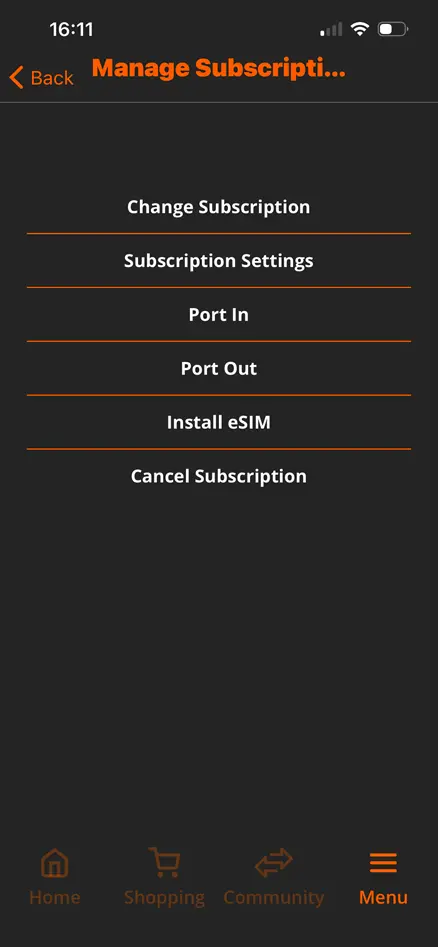
In the Biker Mobile App, click the ‘Install eSIM’ menu item in ‘Manage Subscription’

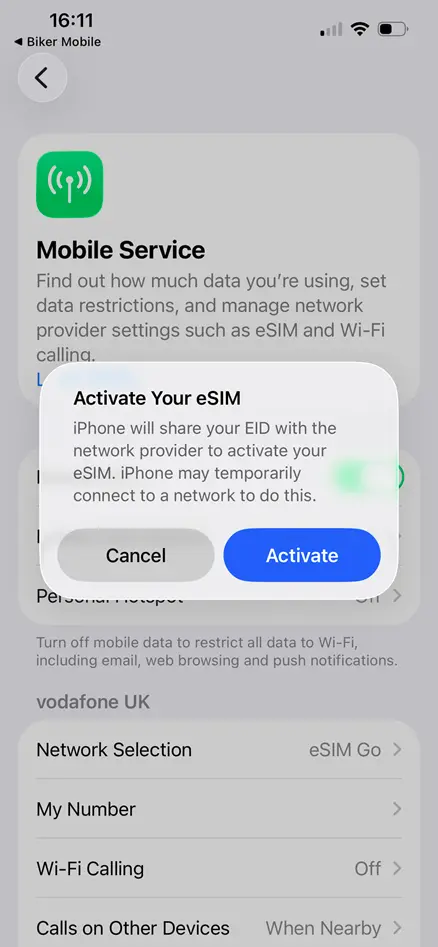
This opens the phone Mobile Service settings screen with a popup asking if you want to Activate Your eSIM Click ‘Activate’

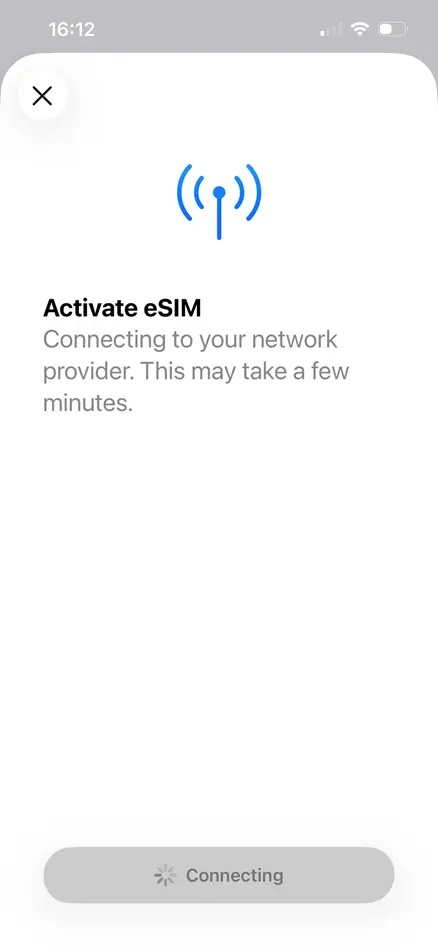
The screen will refresh presenting you with a screen displaying ‘Connecting to network provider. This may take a few minutes’ with grey ‘Connecting’ lozenge at the bottom

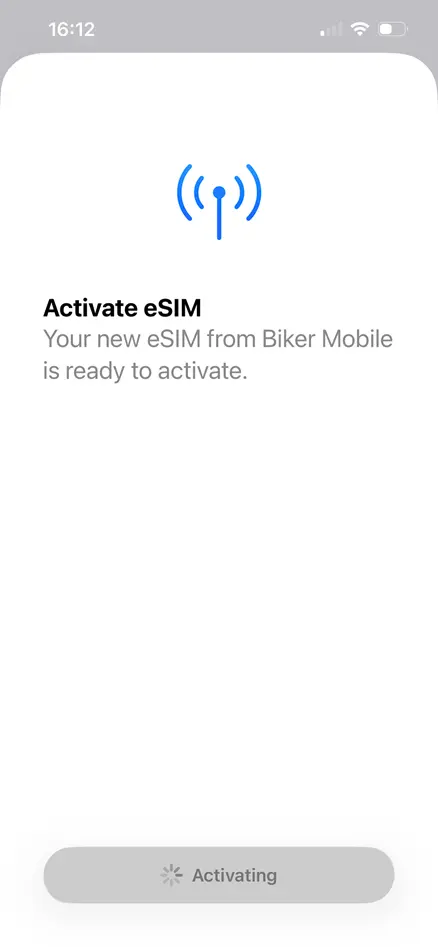
The screen then transitions to ‘Activate eSIM’ advising you your new eSIM from Biker Mobile is ready to activate. Press the blue ‘Continue’ button

Lozenge becomes grey ‘Activating’

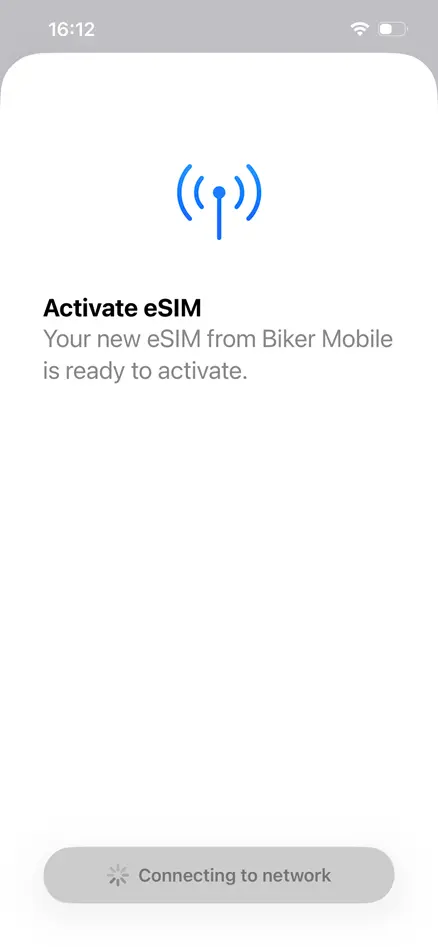
After a few seconds this refreshed to ‘Connecting to network’

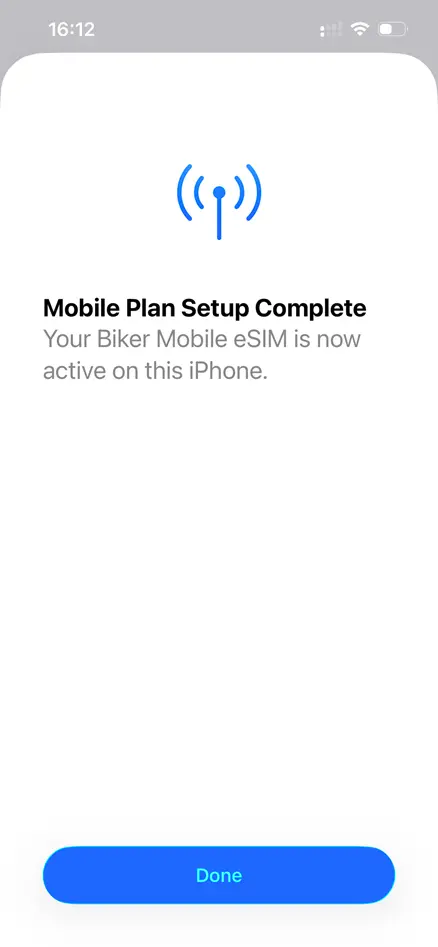
On completing the network connection the screen refreshes advising  ‘Mobile Plan Setup Complete’. Click ‘Done’

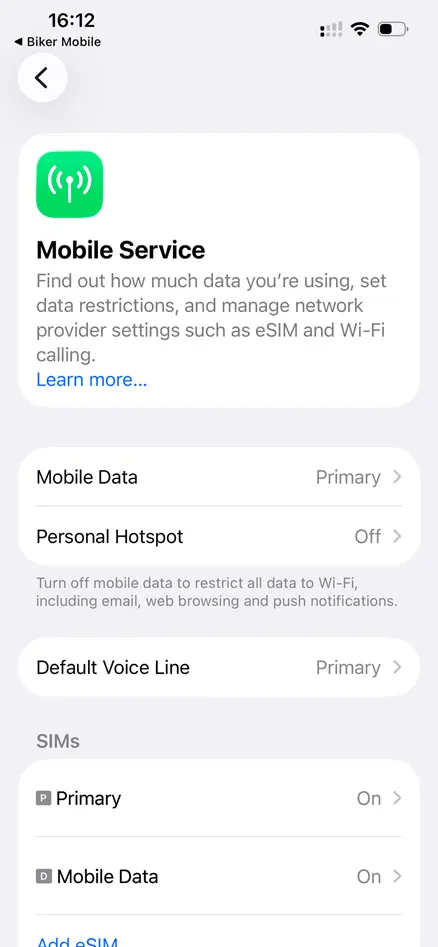
You are then returned to the Mobile Service  settings, now with an added entry for the new eSIM under ‘SIMs’.

The SIM label is assigned by the device

If you click on your new eSIM ‘Mobile Data’ or the newly assigned label a screen that displays your Biker Mobile SIM. You can assign it a different predefined label or define your own label

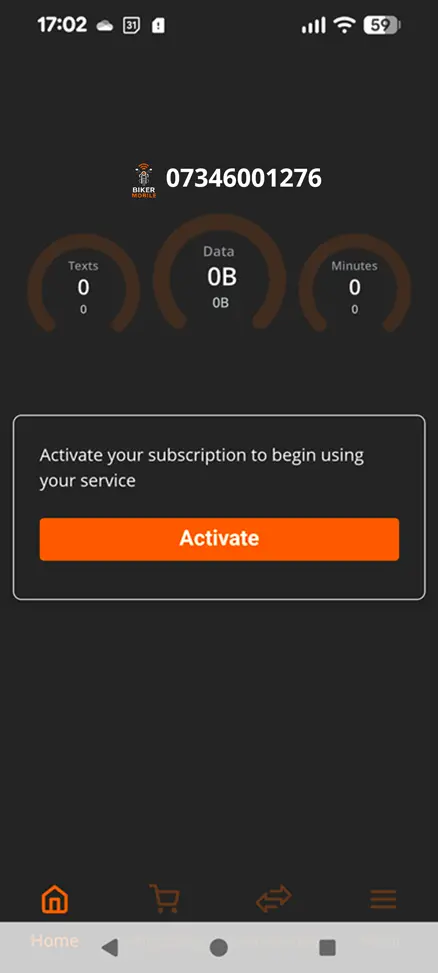
Activation is triggered from the Mobile App, after you have downloaded and registered.

It is possible to activate your Biker Mobile eSIM before or after you have installed the eSIM.

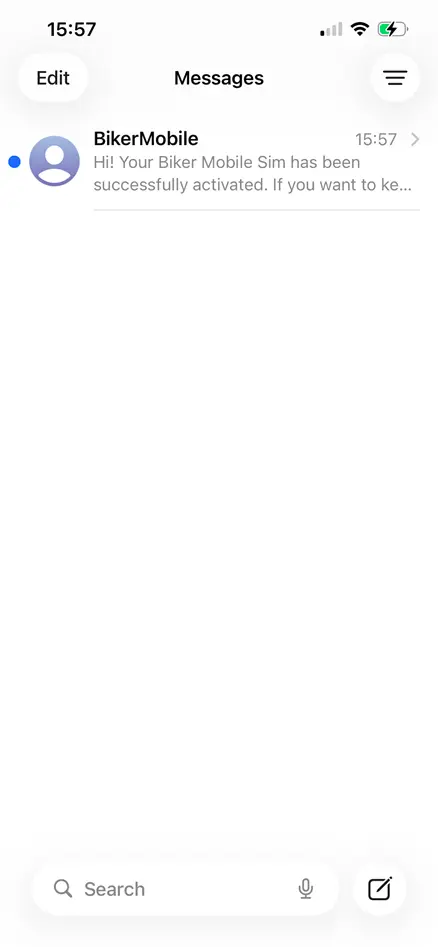
We will send you an SMS to confirm activation, you will receive this when your SIM is installed